Seedream 5.0 Pro Guide: Best-Quality AI Images and Edits
Seedream 5.0 in Wellshot: Pro for best quality and precise edits, up to 10 reference images, 1K to 2K sizes, and how to turn stills into video start frames.
By the Wellshot team · · 5 min read
Seedream 5.0 is ByteDance's image model family, and Seedream 5.0 Pro is the one to use when quality matters most: it makes images from text and edits pictures precisely using up to 10 reference images. In Wellshot it renders at 1K, 1.5K or 2K, and its stills make strong start frames for video. This guide covers the Pro model in detail and shows where its siblings, Flash and Lite, fit in.
The Seedream 5.0 family
Seedream comes from ByteDance's Seed team, the same team behind Seedance video. There are three Seedream 5.0 models in Wellshot:
| Model | Sizes | Max references | Best for |
|---|---|---|---|
| Seedream 5.0 Pro | 1K, 1.5K, 2K | 10 | Best quality, precise edits |
| Seedream 5.0 Flash | 1K, 1.5K, 2K | 10 | Fast, cheap drafts and storyboards |
| Seedream 5.0 Lite | 2K, 3K, 4K | 14 | High resolution up to 4K |
All three do text to image and editing with references. Aspect ratios are 16:9, 9:16, 1:1, 4:3, 3:4, 3:2, 2:3 and 21:9.
If you're planning a storyboard, read the Seedream 5.0 Flash storyboard guide. If you need big files for print or crops, see Seedream 5.0 Lite as a 4K AI image generator. The rest of this post is about Pro.
What Seedream 5.0 Pro is good at
Final-quality stills
Pro is the top of the family for picture quality. When an image is going to be seen as-is, such as a key visual, a product hero or a poster frame, Pro is the default choice.
Precise edits
Pro is also the Seedream model for careful changes to an existing picture: swap a background, change a label color, move a prop, relight a scene. Give it the picture as a reference, describe the change, and keep everything else the same.
For exact areas, use the Painter node on the Canvas to draw on the picture and mark what should change, then feed that into the Seedream 5.0 Pro edit node. The AI image editing with reference images guide walks through this step by step.
Start frames for video
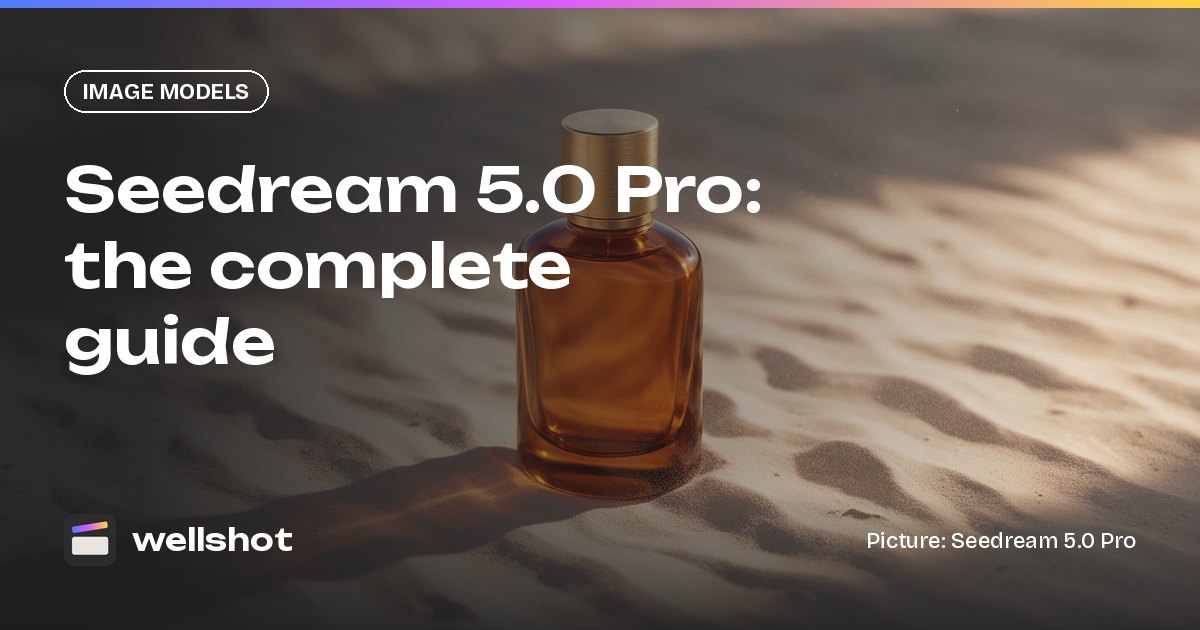
The product stills in Wellshot's showcase (the watch, perfume, headphones and burger) were made with Seedream 5.0 Pro and then used as start frames by a video model. A clean, well-lit Pro still gives the video model a strong first frame.

Working with up to 10 references
Pro accepts up to 10 reference pictures. Name them in the prompt as @Image 1, @Image 2 and so on, so the model knows which picture plays which role.
A practical split for a product shot:
- @Image 1: the product itself (keep this exact)
- @Image 2: the surface or set
- @Image 3: a lighting or mood reference
- @Image 4: a prop to include
The clearer you are about what each reference is for, the less the model has to guess.
A worked example
Here's a product edit with three references: the perfume bottle, a marble surface, and a mood picture of warm evening light.
Product photograph. Place the perfume bottle from @Image 1 on the marble surface
from @Image 2. Keep the bottle's shape, glass color and label exactly as in
@Image 1. Light the scene like @Image 3: low warm golden-hour light from the
left, soft long shadow to the right, gentle highlight running down the glass.
Shallow depth of field, clean background, 3:4 vertical framing.
No extra text, no other bottles.
The prompt says which parts are fixed (bottle, label), which are borrowed (surface, light), and what to leave out. That is usually all a precise edit needs.

From still to moving shot
Once you have the still, turning it into video is one more step:
- Generate or edit the still with Seedream 5.0 Pro in the Studio (image mode) or on the Canvas.
- In the Studio, switch to video mode and use the still as the start frame. Or on the Canvas, wire the image node's output into a video node's first frame input.
- Pick a video model. Seedance, Gemini Omni Flash and Kling all take a start frame. For end-frame control see image to video with a start and end frame.
- Describe the motion and generate.
This still-first approach is the backbone of most AI product video work: get the picture right where it's cheap, then animate.
You can open Seedream 5.0 Pro in Wellshot and start with a product still.
Common edit mistakes
- Not saying what to keep. If the label must stay, say "keep the label exactly as in @Image 1".
- Too many changes at once. Make one change per pass; every result is saved as a take, so you can step back.
- Vague references. A reference with no role in the prompt is a reference the model has to guess about.
When to pick Pro, Flash or Lite
- Pick Pro for the final still, a client-facing frame, or any edit that must be precise.
- Pick Flash when you need lots of images quickly and cheaply, such as storyboards, options or rough layouts.
- Pick Lite when the file must be large (3K or 4K) or you need up to 14 references.
- Look outside Seedream when you need strong text in the image: Nano Banana 2.1 and Nano Banana Pro are noted for text rendering. Our Nano Banana vs Seedream comparison goes into that choice.
FAQ
What is the difference between Seedream 5.0 Pro, Flash and Lite?
Pro gives the best quality and the most precise edits. Flash is fast and cheap for drafts and storyboards. Lite renders larger files, at 2K, 3K or 4K, and accepts up to 14 references.
How many reference images can Seedream 5.0 Pro use?
Up to 10. Name each one in the prompt as @Image 1, @Image 2 and so on.
What resolution does Seedream 5.0 Pro output?
Seedream 5.0 Pro renders at 1K, 1.5K or 2K. For 4K, use Seedream 5.0 Lite.
Who makes Seedream 5.0?
Seedream is made by ByteDance's Seed team, which also makes the Seedance video models.
Is Seedream 5.0 Pro free in Wellshot?
Image generations use credits. You see the price on the button before generating, and failed generations are refunded automatically.
Make it in Wellshot
Every model in one studio. Prompt it, wire it as nodes, or let the Director run it.