AI Image Editing With Reference Images: A Practical Guide
AI image editing with reference images in Wellshot: which models take how many references, how to name them in a prompt, and how to mark the area to change.
By the Wellshot team · · 5 min read
AI image editing with reference images means giving a model one or more pictures plus a prompt, and telling it what to keep and what to change. In Wellshot every image model can do this: you attach references, name them in the prompt as @Image 1, @Image 2 and so on, and if only part of the picture should change you mark that area with the Painter node.
This guide covers which models take how many references, how to write the prompt so the model knows which picture is which, and a worked product edit you can copy.
How reference editing works in Wellshot
Every image model in Wellshot does two tasks: generate from text, and edit with references. The edit task is the one you want when you already have a picture that is close and need a controlled change, or when you need to combine pieces of several pictures.
The references are numbered inputs. In Studio you add them in the reference area of the prompt panel; on the Canvas they appear as Image 1, Image 2 and so on, on the model's node, and the "+" adds more up to that model's limit. In the prompt you call them by name:
- @Image 1 is the first reference, @Image 2 the second, and so on.
- Say what each one is for: "the product from @Image 1", "the lighting from @Image 2".
- Say what must not change: shape, label, face, color.
Naming the role of each picture is the single biggest improvement you can make to an edit prompt. Without it, the model has to guess whether @Image 2 is a background, a style or a second subject.
Which models take how many references
| Model | Maker | Max references | Sizes | Good at |
|---|---|---|---|---|
| Seedream 5.0 Pro | ByteDance | 10 | 1K, 1.5K, 2K | Best quality, precise edits |
| Seedream 5.0 Flash | ByteDance | 10 | 1K, 1.5K, 2K | Fast, cheap drafts |
| Seedream 5.0 Lite | ByteDance | 14 | 2K, 3K, 4K | High resolution up to 4K |
| Seedream 4.5 | ByteDance | 14 | 2K, 4K | Proven editing with many references |
| Seedream 4.0 | ByteDance | 14 | 1K, 2K, 4K | Older, cheap |
| Nano Banana 2.1 | 14 | 1K, 2K, 4K | Strong edits, text, character consistency | |
| Nano Banana Pro | 14 | 1K, 2K, 4K | Best detail and text | |
| Kling Image 3.0 | Kuaishou | 1 | 1K, 2K | Cheap stills from one reference |
| Kling Image 3.0 Omni | Kuaishou | 10 | 1K, 2K, 4K | Consistent people and products |
| Kling Image O1 | Kuaishou | 10 | 1K, 2K | Edits and mixes references |
More references is not automatically better. Two or three clear pictures with clear roles beat ten loosely related ones. Go wide only when you genuinely have that many things to hold steady, such as a character sheet plus outfit plus location plus prop.
For a closer look at the two biggest families, read Nano Banana vs Seedream. The Kling options are compared in Kling Image O1 vs 3.0 and 3.0 Omni.
Marking the area to change with the Painter node
Sometimes you want the model to touch only one part of the frame: swap a label, remove a cable, change a sky. On the Canvas, add a Painter node, connect your picture, and draw over the area you want changed. Feed the painted picture into the model as a reference and say in the prompt that only the marked area should change.
The Canvas also has editing nodes that run without AI, which help you prepare references before they reach the model:
- Crop and resize to frame the part that matters.
- Color adjust and levels to match references shot in different light.
- Compositor with blend modes to rough in a layout.
- Apply mask and solid color for clean cut-outs and plates.
- Extract frame from video to turn a moment of a clip into a still reference.
These are plain editing tools, not AI, and they let you show the model exactly what you mean.
Worked example: changing a product setting
Say you have a clean product still of a watch and want it on a wet rock at dawn, without the model redrawing the dial.
- Open the shot in Studio, switch to image mode and pick Seedream 5.0 Pro for precise edits.
- Add the watch still as the first reference and a picture of the setting as the second.
- Pick the aspect ratio and size (2K for a final frame).
- Write the prompt below, check the credit price on the button, and run.
Edit: place the watch from @Image 1 on the wet black rock from @Image 2.
Keep the watch exactly as in @Image 1: dial, hands, logo, strap color.
Dawn light, low and cool from behind, a thin rim of light on the case.
Small water droplets on the rock, none on the dial. 16:9 frame.

If the result changes the dial, tighten the "keep" line and run again with the same seed so only the prompt differs. If you want to compare models, open the Canvas, branch the same references into Seedream 5.0 Pro and Nano Banana 2.1 side by side, and run both. Only the nodes you changed re-run.
From edited still to moving shot
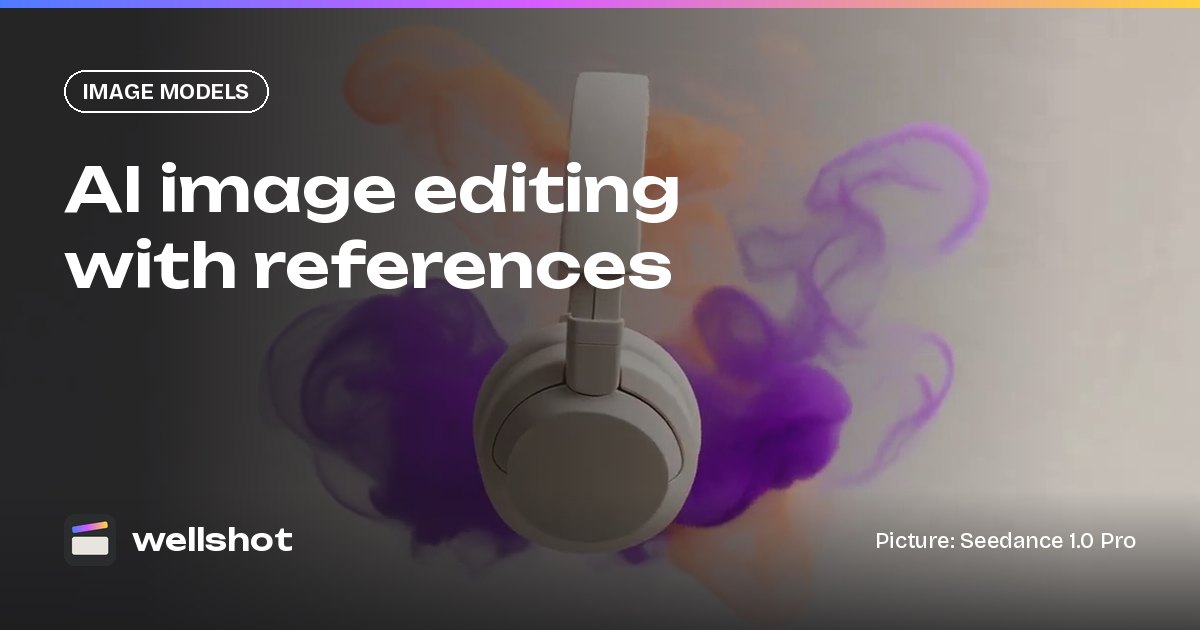
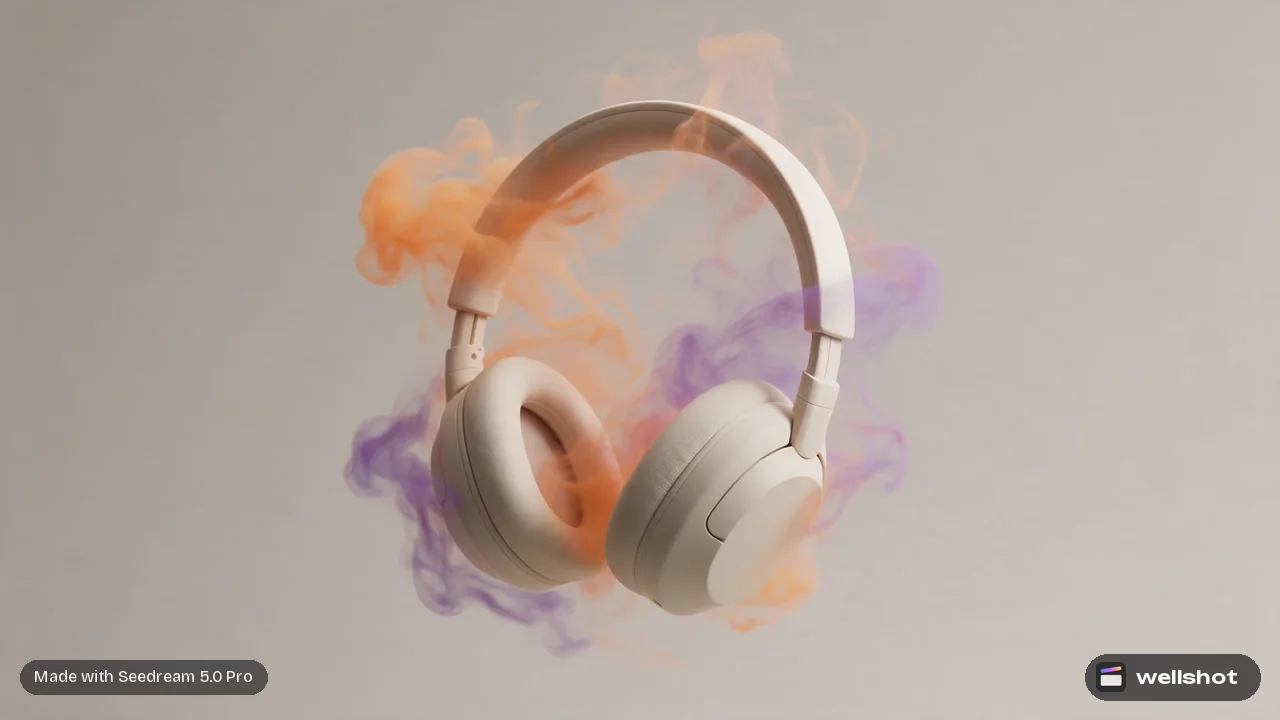
An edited still is often a start frame. Once you have it, you can hand it to a video model as the first frame (and a second edit as the last frame) to animate between them. The start and end frame guide shows how, and the cover of this post is exactly that: a headphones still animated into smoke. For product work end to end, see the AI product video generator post.
Ready to try it on your own picture? Open Seedream 5.0 Pro in Wellshot.
FAQ
How do I edit an image with a reference image using AI?
Attach the picture as a reference, name it in the prompt as @Image 1, and describe what to keep and what to change. In Wellshot every image model supports this edit task.
How many reference images can I use?
It depends on the model: up to 14 for Seedream 5.0 Lite, Seedream 4.5, Seedream 4.0, Nano Banana 2.1 and Nano Banana Pro; up to 10 for Seedream 5.0 Pro, Seedream 5.0 Flash, Kling Image 3.0 Omni and Kling Image O1; and one for Kling Image 3.0.
Can I change only part of an image?
Yes. Draw over the area with the Painter node on the Canvas, pass the painted picture in as a reference, and say in the prompt that only the marked area should change.
Does reference editing cost credits?
Each generation costs credits, and the price shows on the button before you run. Failed generations are refunded automatically, and plan credits refresh every month.
Make it in Wellshot
Every model in one studio. Prompt it, wire it as nodes, or let the Director run it.