Image to Video AI Start and End Frame: A Practical Guide
Image to video AI start and end frame guide: which models support both frames, how to prepare the two pictures, real prompts and a step-by-step setup.
By the Wellshot team · · 6 min read
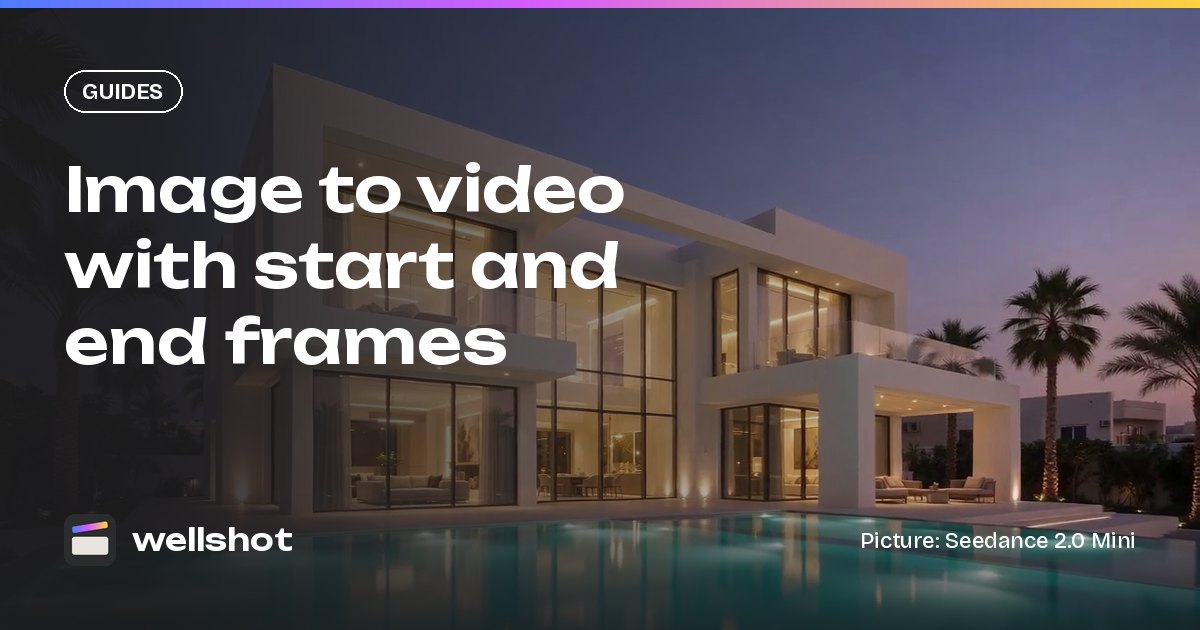
Image to video AI start and end frame mode means you give the model two pictures, the first frame and the last frame of the shot, and it invents the motion in between. It is the most controllable way to animate a still: you decide where the shot begins and where it lands, and the prompt only has to describe the move. In Wellshot most video models accept both frames, and a few accept the start frame only.
Why use a start and end frame
Text-only video is fine for exploring, but for client work you usually need a shot to start on an approved picture and finish on another. Two frames fix both ends:
- Product shots start on the packshot and end on a hero angle.
- Property and travel shots start wide on a photo and end close on the entrance.
- Transitions between scenes become reliable because the last frame of shot A can be the first frame of shot B.
- Continuity improves: the character, wardrobe and light in both frames anchor the model.
With only a start frame you still keep the opening composition, and the model decides where it goes. That is often enough for simple pushes and ambient motion.
Which models support start and end frames
| Model | Start frame | End frame | Length | Resolution |
|---|---|---|---|---|
| Seedance 2.5 | Yes | Yes | 4–30 s | 480p, 720p, 1080p |
| Seedance 2.0 / 2.0 Fast / 2.0 Mini | Yes | Yes | 4–15 s | up to 4K on 2.0; 480p, 720p on Fast and Mini |
| Seedance 1.5 Pro | Yes | Yes | 4–12 s | 480p–1080p |
| Seedance 1.0 Pro | Yes | Yes | 2–12 s | 480p–1080p, silent |
| Seedance 1.0 Pro Fast | Yes | No | 2–12 s | 480p–1080p, silent |
| Gemini Omni Flash | Yes | Yes | 3–10 s, model picks | 360p to 4K |
| Kling 3.0 | Yes | Yes | 3–15 s | 720p, 1080p, 4K |
| Kling 3.0 Turbo | Yes | No | 3–15 s | 720p, 1080p |
A quick way to choose:
- Pick Seedance 2.5 when the move needs time: up to 30 seconds between the two frames, with sound if you want it.
- Pick Kling 3.0 when you need a 1:1 square delivery or 4K, with sound on or off.
- Pick Gemini Omni Flash for short 16:9 or 9:16 shots that always come with sound.
- Pick Seedance 2.0 Mini or 1.0 Pro Fast for cheap tests before the final.
How to prepare the two frames
The model can only connect two pictures that plausibly belong to the same shot. A few rules save a lot of failed takes:
- Same world, same light. Keep the location, time of day and color palette consistent between both frames. If the light changes, say why in the prompt (a door opens, the sun drops).
- Same aspect ratio. Make both pictures at the aspect ratio of the final video. Seedance takes 16:9, 9:16, 1:1, 4:3, 3:4 and 21:9; Gemini Omni Flash takes 16:9 or 9:16.
- A move the camera could actually make. Wide to close on the same subject works. Interior to a different city does not, unless you want a dreamlike morph.
- Make the end frame from the start frame. Use an image model's edit task with the start picture as @Image 1 and ask for the new angle or the change. That keeps details matching. The guide to AI image editing with reference images covers how.
Step by step in Wellshot
In the Studio
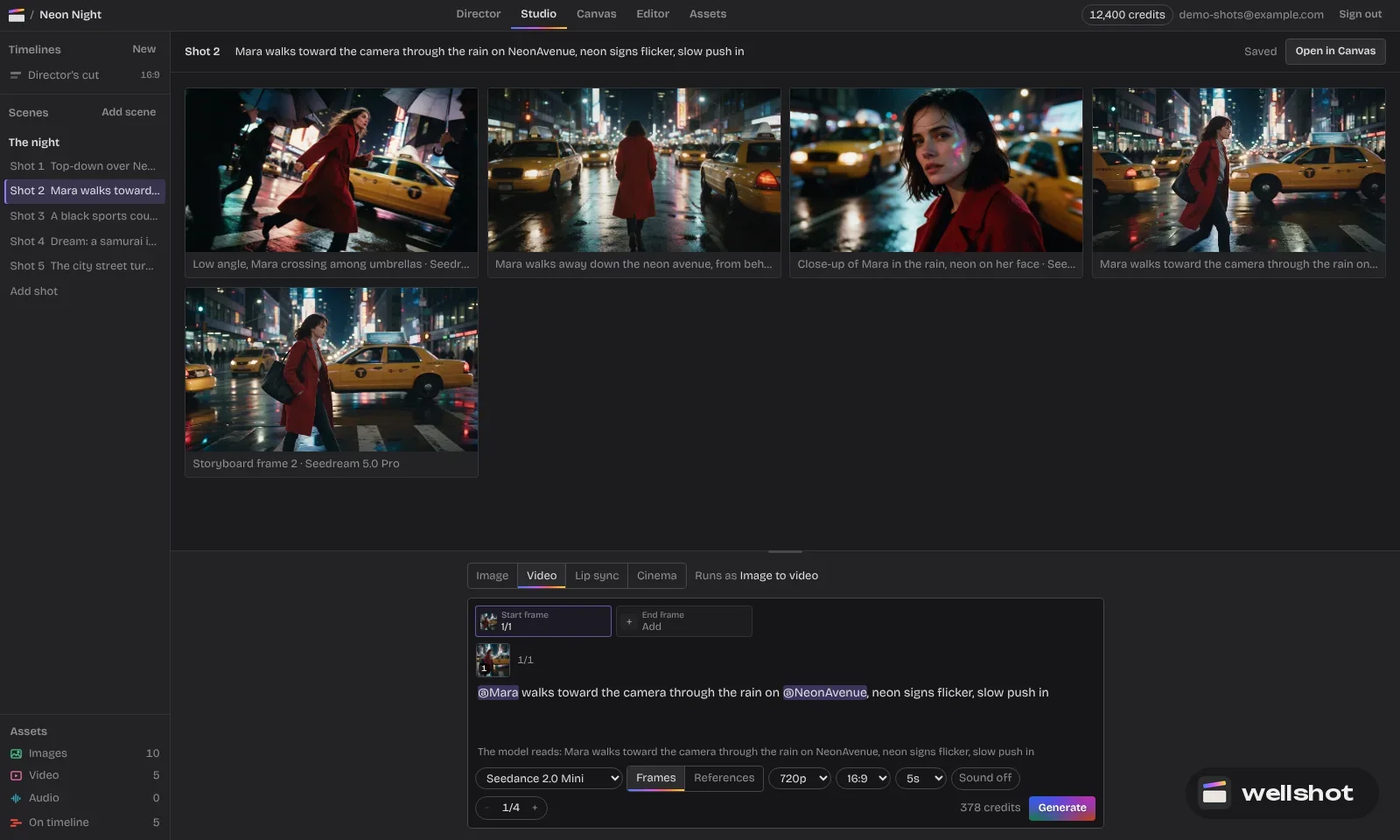
- Open the Studio and switch to video mode, then choose "animate start/end frames".
- Drop your first picture in the start slot and your second in the end slot. Leave the end slot empty for start-frame-only.
- Pick the model, aspect ratio, resolution and length. Toggle sound on or off on models that allow it.
- Write a prompt that describes the motion, not the pictures. The model already sees them.
- Check the credit price on the button, then generate. On Seedance 2.5 you can use draft mode first: a cheap 480p preview, then the full-quality render from the same draft, so the final matches what you approved.
On the Canvas
On the Canvas the same shot is a node graph. Add a video node under "generate from text or image" for your model, wire an image node into its start input and another into its end input. Because outputs are cached, you can change the end frame and re-run without regenerating the start frame. Use the "extract frame from video" node to pull the last frame of one clip and feed it as the start frame of the next, which gives seamless cuts between shots. More on that in the node-based AI video workflow post.
If you would rather skip the setup, open the image to video tool and start from a picture you already have.
Prompts that work
Describe the camera move, the pace and what changes in the scene. Keep it short.
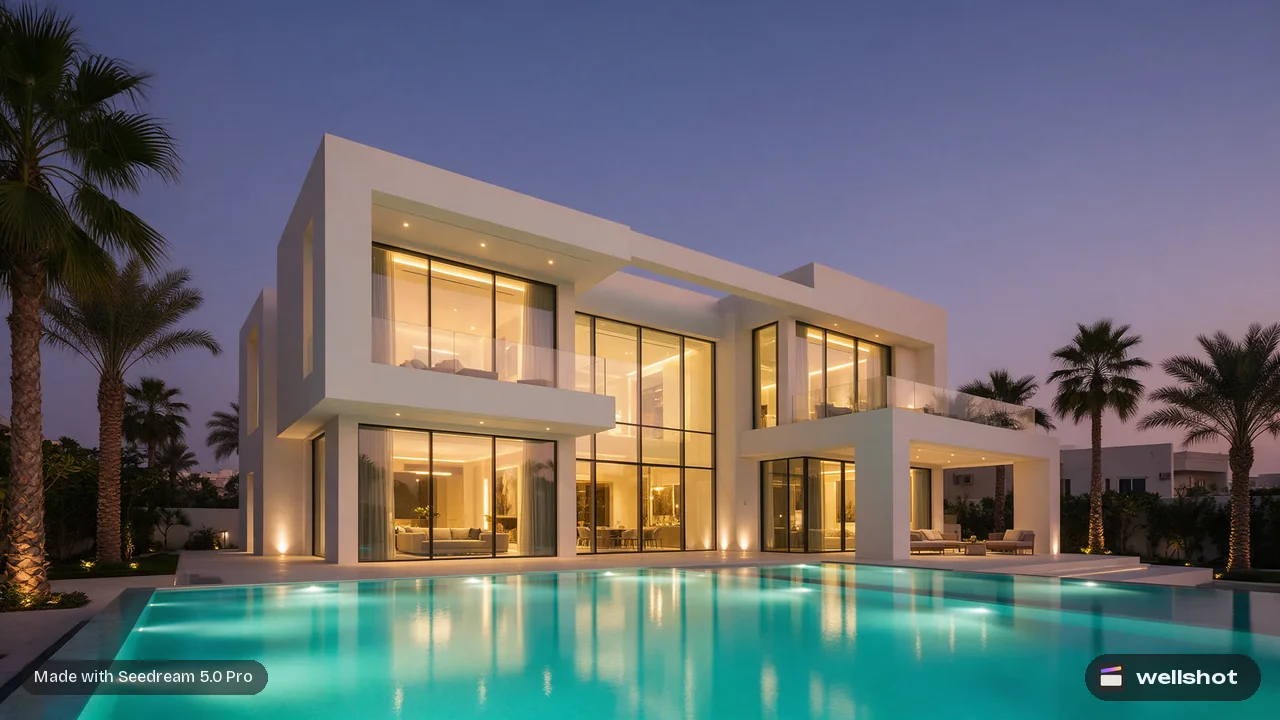
A property drone push from a wide exterior to the front door:
Slow aerial push in toward the villa entrance, steady and smooth, no shake.
Palm leaves move gently in a light breeze. Pool water ripples.
Golden hour light stays constant. Camera ends level with the front door.
A product reveal from packshot to hero angle:
The camera orbits slowly to the right around the watch, half a turn,
keeping it centered. Soft reflections slide across the glass.
Background stays dark and clean. Slow, premium pace.
A character turning toward camera, with the end frame showing her face:
She turns her head slowly from the window to look into the lens.
Hair moves slightly with the turn. Static camera, shallow depth of field.
Soft window light from the left the whole time.
For more wording on moves, see AI video camera movement prompts.
Common problems and fixes
- The shot morphs instead of moving. The two frames are too different. Bring the end frame closer to the start, or add a middle beat by splitting into two shots.
- Motion is too fast. Make the clip longer or add "slow, steady" to the prompt. Seedance 2.5 gives you up to 30 seconds to spread the move.
- Details change between frames. Make the end frame as an edit of the start frame instead of a new generation.
- Faces drift. Keep the face visible and similar in size in both frames, and use the same character reference when making them.
Pick a still, add a second one, and let the model fill the gap.
FAQ
What is start and end frame in AI video?
It is an image-to-video mode where you give the first and last frame of the clip and the model generates the motion between them. It gives you much more control over composition than text-to-video.
Which AI video models support a start and end frame?
In Wellshot: Seedance 2.5, Seedance 2.0, 2.0 Fast, 2.0 Mini, Seedance 1.5 Pro, Seedance 1.0 Pro, Gemini Omni Flash and Kling 3.0. Seedance 1.0 Pro Fast and Kling 3.0 Turbo take a start frame only.
Can I use only a start frame?
Yes. Leave the end slot empty and the model decides where the shot goes from your first picture. Every image-to-video model in Wellshot supports this.
How long can an image to video clip be?
It depends on the model: Seedance 2.5 goes up to 30 seconds, Seedance 2.0 and Kling 3.0 up to 15, and Gemini Omni Flash up to 10.
Does image to video cost more than text to video?
The credit price depends on the model, resolution and length, and it shows on the button before you generate. Failed generations refund automatically.
Make it in Wellshot
Every model in one studio. Prompt it, wire it as nodes, or let the Director run it.