Seedream 5.0 Flash: Fast, Cheap AI Storyboard Frames
How to use Seedream 5.0 Flash in Wellshot for fast, cheap storyboard frames and drafts, with up to 10 references, consistent characters and a worked prompt.
By the Wellshot team · · 5 min read
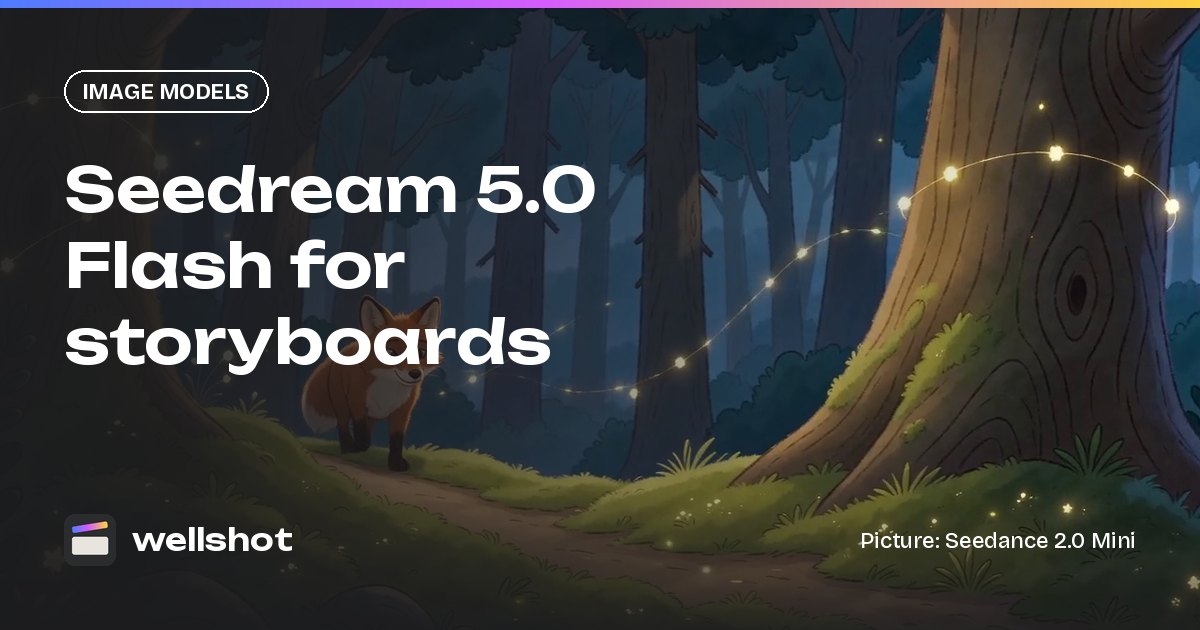
Seedream 5.0 Flash is the fast, cheap member of ByteDance's Seedream 5.0 image family, built for drafts and storyboards. In Wellshot it makes images from text or edits them with up to 10 reference pictures, at 1K, 1.5K or 2K, so you can board a whole scene before spending credits on final frames or video. Here's how to use it well, with a worked storyboard prompt.
What Seedream 5.0 Flash is
Seedream 5.0 Flash is made by ByteDance's Seed team. It does the same two jobs as the rest of the family, text to image and editing with references, but it's tuned for speed and low cost rather than top quality.
| Spec | Seedream 5.0 Flash |
|---|---|
| Maker | ByteDance |
| Tasks | Text to image, edit with references |
| Sizes | 1K, 1.5K, 2K |
| Max references | 10 |
| Aspect ratios | 16:9, 9:16, 1:1, 4:3, 3:4, 3:2, 2:3, 21:9 |
| Best for | Drafts, storyboards, options |
Compared with its siblings: Seedream 5.0 Pro has the same sizes and reference limit but better quality and more precise edits; Seedream 5.0 Lite goes up to 4K.
Why storyboard with a fast model
A storyboard is a thinking tool. You want to see the order of shots, the framing and the rough look, and you want to change your mind cheaply. That means many images, quickly, and most of them will be thrown away.
Flash fits that job:
- Low cost per frame, so boarding 20 shots doesn't eat your plan.
- Quick turnaround, so you can try a wide and a close-up of the same beat and pick.
- The same references and aspect ratios as Pro, so the board matches the final format.
- Up to 10 references, so a character sheet, a location and a prop can all ride along.
When a frame is approved, you can re-run it with Seedream 5.0 Pro for the final still, or send it straight to a video model as a start frame.
Keeping characters consistent across frames
The hardest part of any board is making the same character look the same in every panel. Two habits help:
- Build a character reference first. The Director agent can cast characters with reference sheets: four full-body views (front, side, back, three-quarter) plus portrait and detail close-ups. Use those pictures as references.
- Name references the same way in every prompt. If @Image 1 is always the hero and @Image 2 is always the location, the model has less to guess shot to shot.
For a deeper look, read our guide to consistent characters in AI.
A worked storyboard prompt
Here's one panel from a children's short set in a painted forest. @Image 1 is the fox character sheet, @Image 2 is the forest location still.
Storyboard frame, 16:9, wide shot. The fox from @Image 1 stands at the edge of
the painted forest from @Image 2, small in frame, looking up at a giant glowing
mushroom. Low camera angle. Soft golden light through the trees, painted
storybook texture, warm greens and amber. Keep the fox's colors and markings
exactly as in @Image 1.
For the next panel, change only the shot and the action and keep the rest:
Storyboard frame, 16:9, close-up. The fox from @Image 1 reaches one paw toward
the glowing mushroom, eyes wide. Same painted forest from @Image 2, same soft
golden light, painted storybook texture. Keep the fox's colors and markings
exactly as in @Image 1.
Repeating the look and the "keep" line is what holds the board together.
How to build a board in Wellshot
With the Director
Describe the film to the AI director agent. It asks what it needs (format, aspect ratio, length, tone and look), writes the script, casts characters, and builds a storyboard of scenes and shots. You can ask it to use Seedream 5.0 Flash for the board frames, and it tells you what the plan costs before generating.
On the Canvas
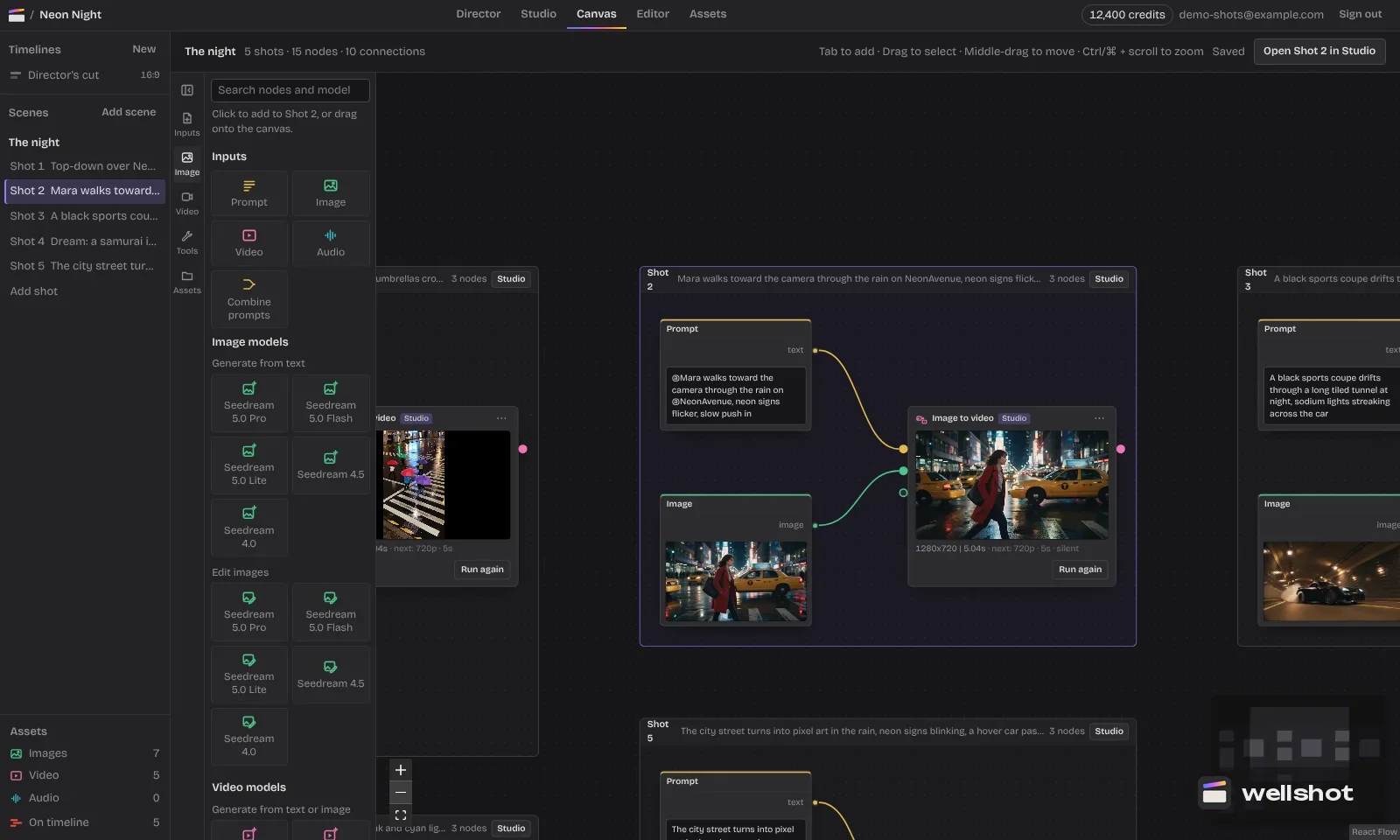
- Put the scene on one board; each shot becomes a group.
- Press Tab, search for Seedream 5.0 Flash, and add its image node to each shot group.
- Wire your character and location pictures into the numbered inputs (Image 1, Image 2…).
- Write each prompt, run, and compare. Re-running only executes nodes that changed, so tweaking one panel doesn't re-run the board.
- Branch variations side by side when you can't decide between two framings.
In the Studio
For a few frames, open the shot in the Studio's image mode, pick Seedream 5.0 Flash, add references and generate. Every take is saved on the shot.
More on boarding as a workflow is in our AI storyboard generator guide.
You can open Seedream 5.0 Flash in Wellshot and board your first scene.
What to put in every board prompt
- The shot size: wide, medium, close-up, insert.
- The camera angle: low, eye level, high, overhead.
- The action in one line: what changes in this panel.
- The look: the same light and palette words in every panel.
- The "keep" line for characters and props.
From board to video
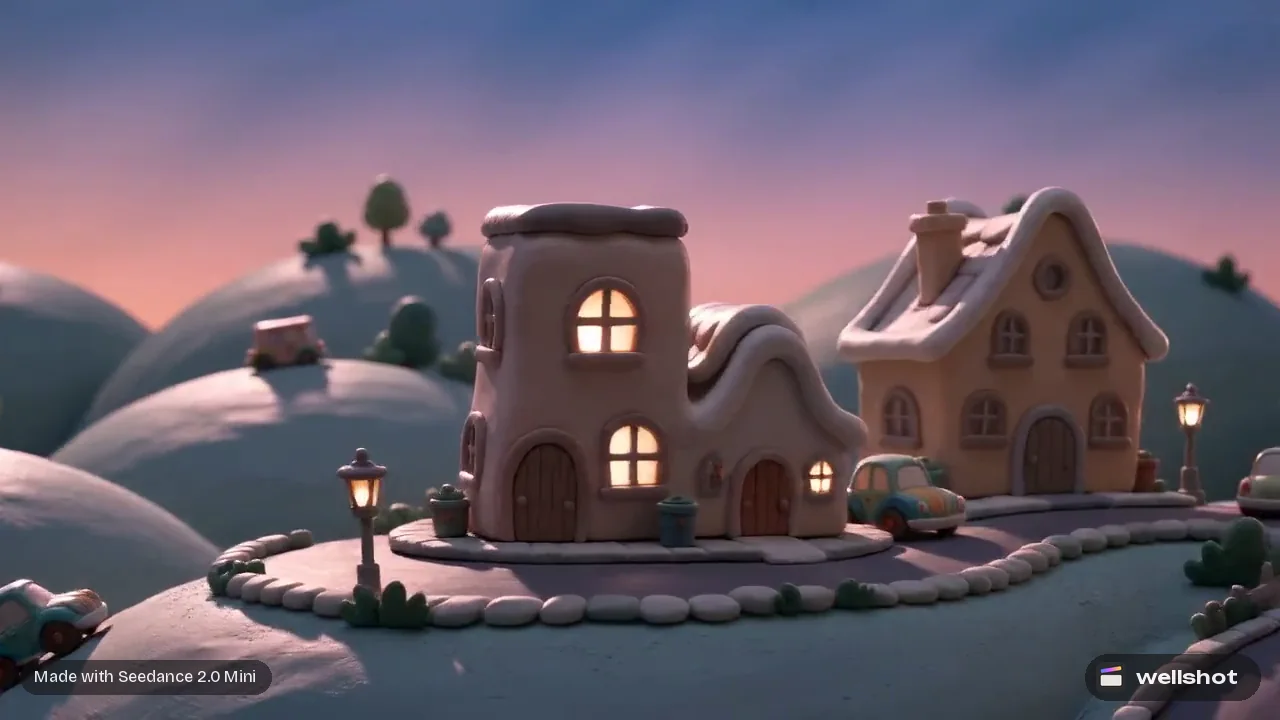
Once the board is approved, each frame can become a start frame for its shot. Pick a video model per shot; for cheap motion tests, Seedance 2.0 Mini is the cheapest of the 2.0 family and works well for drafts. When the timing is right, render the finals and assemble them in the Editor.
FAQ
Is Seedream 5.0 Flash good for storyboards?
Yes. It's the fast, cheap Seedream 5.0 model, made for drafts and storyboards, and it supports up to 10 reference pictures to keep characters and locations consistent.
What is the difference between Seedream 5.0 Flash and Pro?
Both render at 1K, 1.5K or 2K with up to 10 references. Flash is faster and cheaper; Pro gives the best quality and more precise edits.
Can Seedream 5.0 Flash edit images?
Yes. Like every Seedream model in Wellshot, it can edit a picture using references, and you can mark the area to change with the Painter node.
How much does Seedream 5.0 Flash cost?
It uses credits like every model in Wellshot, and it's one of the cheaper image options. The exact price shows on the button before you generate.
Make it in Wellshot
Every model in one studio. Prompt it, wire it as nodes, or let the Director run it.