Online Video Editor for AI Video: The Wellshot Timeline
An online video editor for AI video, built into Wellshot: drop takes on tracks, add music and voice, trim, add titles, swap takes and export from the browser.
By the Wellshot team · · 5 min read
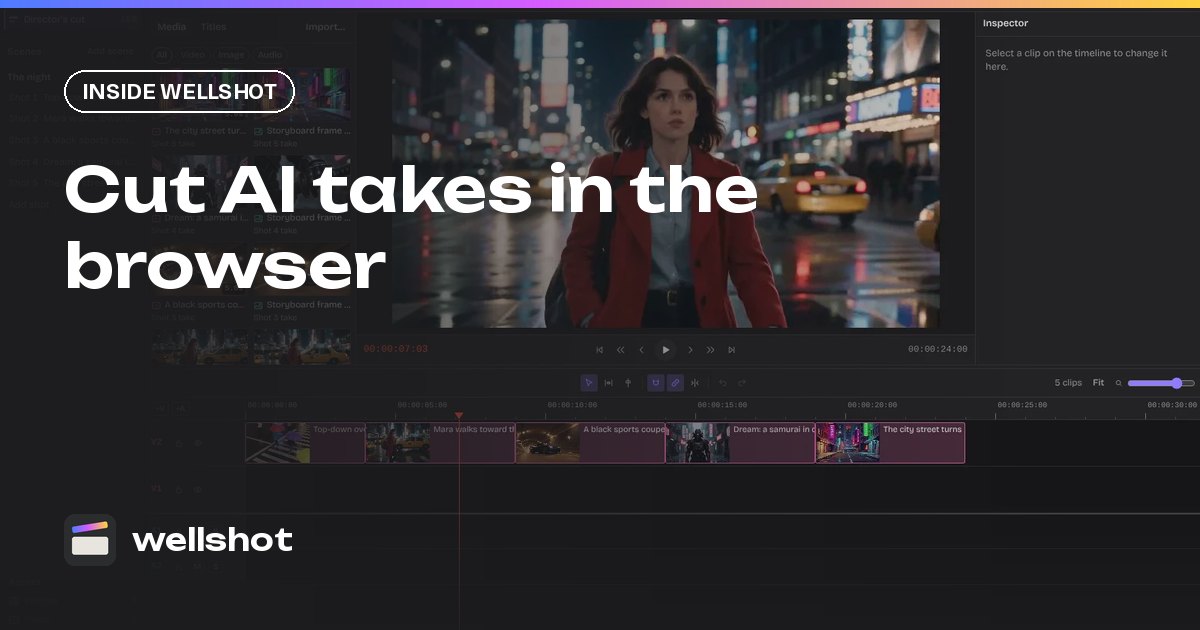
Wellshot includes an online video editor for AI video, so the takes you generate go straight onto a timeline in the same browser tab instead of being downloaded, renamed and imported somewhere else. You drop takes on video tracks, lay your own music, voice and sound under them, trim, add titles and export.
Below is what the Editor does, how it connects to the rest of the studio, and a practical order of work for cutting a short piece.
Why an editor inside the generator matters
Anyone who has cut AI footage knows the pain: dozens of near-identical files, no memory of which prompt made which, and a re-export every time a shot changes. In Wellshot, every generation is saved as a take on its shot, and every take lands in the project's media. The Editor reads from that same project.
That gives you two practical wins:
- No file wrangling. Takes are already in the media panel, organised by the project they belong to.
- Swap take. When you generate a better version of a shot, "Swap take" on that shot updates the cut. You don't rebuild the edit around it.
The Editor is one of four views over the same data, alongside the Director, Studio and Canvas. A change in one shows up in the others. If you are new to that idea, start with what an AI film studio is.
What you can do on the timeline
| Area | Tools |
|---|---|
| Tracks | Video tracks for takes; audio tracks for your music, voice and sound |
| Editing | Split, slip, ripple, snapping |
| Audio | Volume and mute per clip |
| Titles | Fonts, color, size, position, opacity, rotation, letter spacing, background |
| Transform | Position, zoom, rotation, flip |
| Output | Export |
A few notes from using it on real jobs:
- Slip is the one you will use most with AI clips. Generated takes often have their best second in the middle; slip lets you keep the clip's length in the cut and slide which part of the take plays.
- Ripple keeps the rest of the timeline closed up when you shorten a shot, so you are not chasing gaps.
- Snapping makes cutting on a beat or a line of dialogue quick.
- Transform zoom is handy for a punch-in on a wide take, or to reframe slightly without generating again.

Sound in the cut
Many video models in Wellshot generate sound with the picture. Seedance models can switch it on or off, Gemini Omni Flash always adds it, Kling 3.0 has it as an option, and Kling 3.0 Turbo always includes it. That sound comes in with the take. Read more in AI video generator with sound.
On top of that you add audio tracks:
- Music: generate a track with Eleven Music (songs or score from a description, up to 3 minutes) or upload your own, then lay it on an audio track under the picture.
- Voice-over: record your own, or generate speech with Seed Audio 1.0 and drop it on an audio track. See the AI voiceover generator post.
- Sound effects and ambience: also from Seed Audio 1.0, or your own files.
Use per-clip volume and mute to decide whether a take's built-in sound stays, sits under the music, or goes.
How the Director feeds the Editor
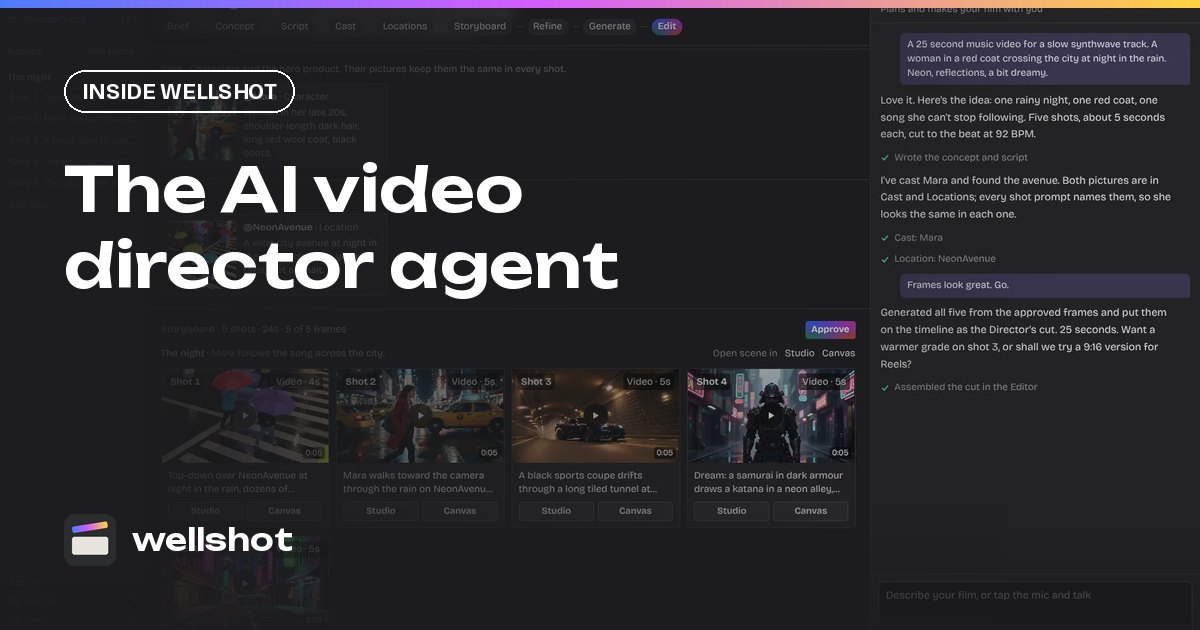
If you plan a film with the Director agent, you don't start on an empty timeline. The Director builds a storyboard of scenes and shots, generates them, and assembles the cut on the timeline in story order, with each clip trimmed to its planned length. For music videos it asks for the track, uploaded or made with Eleven Music, and cuts shots to the beat, typically 2 to 4 seconds each. The AI music video generator post covers that flow.
From there, the Editor is where you take over by hand: tighten cuts, slip takes to their best moments, add titles and set levels.
A practical order of work
Here is a simple pass for a 30 to 60 second social piece.
- Lay picture. Drop your chosen takes on a video track in story order, or start from the Director's assembled cut.
- Add the music on an audio track and turn snapping on.
- Rough cut to the music. Split and ripple until the structure feels right. Don't polish yet.
- Slip each take so its best motion plays. AI shots often settle after the first second.
- Swap weak shots. Go back to the shot, generate a better take in Studio or on the Canvas, then use "Swap take" so the cut updates.
- Sound pass. Decide per clip whether built-in sound stays; add voice and effects on separate tracks; set volumes.
- Titles. Add your text, pick font, size, color and position, and a background if it needs to read over busy picture.
- Export.
For vertical deliveries, see the AI vertical video generator guide on generating in 9:16 from the start, which beats cropping a wide frame.

Editor vs a separate desktop editor
You can still export and finish in your usual tool if a job needs it. The reason to cut in Wellshot is the link back to generation: the timeline knows which shot each clip came from, so replacing a shot is one action instead of a re-import and re-sync. For a full short-film walkthrough that uses all four views, read how to make an AI short film.
Open a project, generate a few takes, and try a rough cut in the browser.
FAQ
Can I edit AI-generated videos online without downloading them?
Yes. In Wellshot every take lands in the project's media, and you drop takes straight onto the timeline in the browser to split, trim, add titles and export.
Can I add my own music to an AI video?
Yes. Upload your track, or generate one with Eleven Music, and place it on an audio track under the picture. The Director can also cut a music video to the beat of that track.
What does Swap take do?
Each shot keeps all its takes. Swap take replaces the take used in the cut with another one from that shot, and the timeline updates without you rebuilding the edit.
Can I add text and titles?
Yes. Titles have controls for font, color, size, position, opacity, rotation, letter spacing and a background.
Make it in Wellshot
Every model in one studio. Prompt it, wire it as nodes, or let the Director run it.