Kling Motion Control: Copy Motion From a Clip to a Character
Kling Motion Control in Wellshot: copy the moves from any clip onto a character in a picture, up to 30 seconds. Dance, sport and phone performances.
By the Wellshot team · · 6 min read
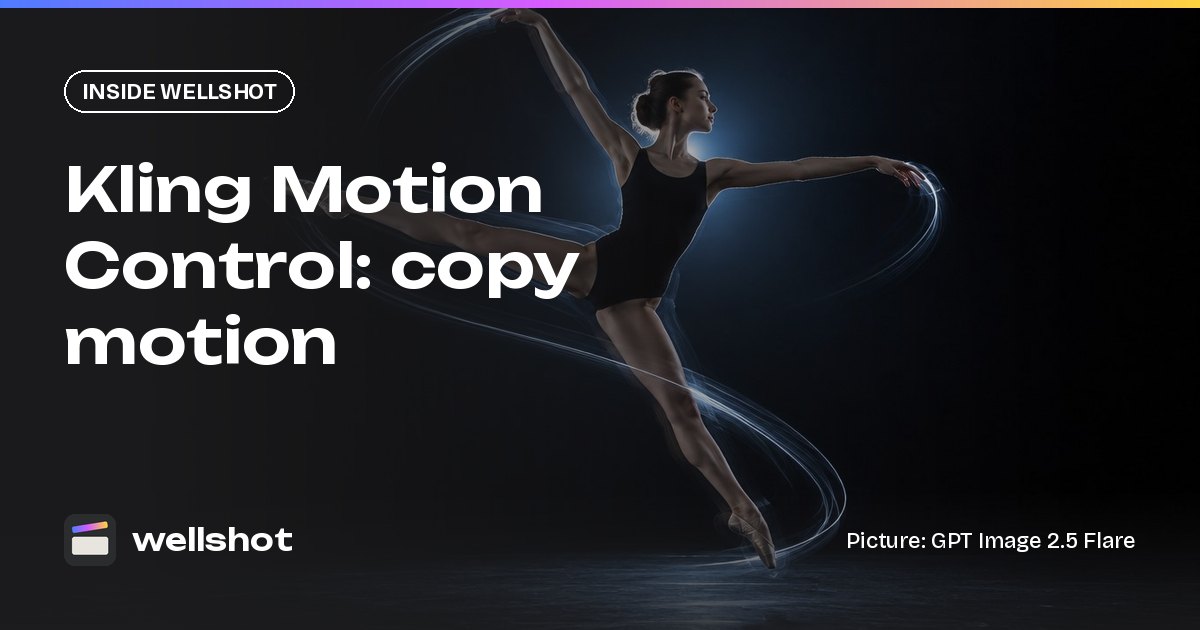
Kling Motion Control copies motion: give it a picture of a character and a clip of someone moving, and the character in the picture does the moves from the clip. In Wellshot it is Kling 3.0 Motion Control, a node on the Canvas, and it makes up to 30 seconds when it follows the clip's framing, or up to 10 seconds when it keeps the picture's framing.
That makes it the tool for dance, sports moves and performances recorded on a phone, applied to an illustrated, 3D or stylized character who could never be filmed.
What it does
| Kling 3.0 Motion Control | |
|---|---|
| Maker | Kling (Kuaishou) |
| Inputs | A picture of the character (@Image 1) and a clip with the moves (@Video 1) |
| Prompt | Optional |
| Length | Up to 30 s following the clip, up to 10 s following the picture |
| Sound | Can keep the clip's own sound |
| Where | Canvas, under Video, "Copy motion" |
The picture decides who is moving: the face, the body, the outfit, the style. The clip decides how they move: the steps, the timing, the gestures.
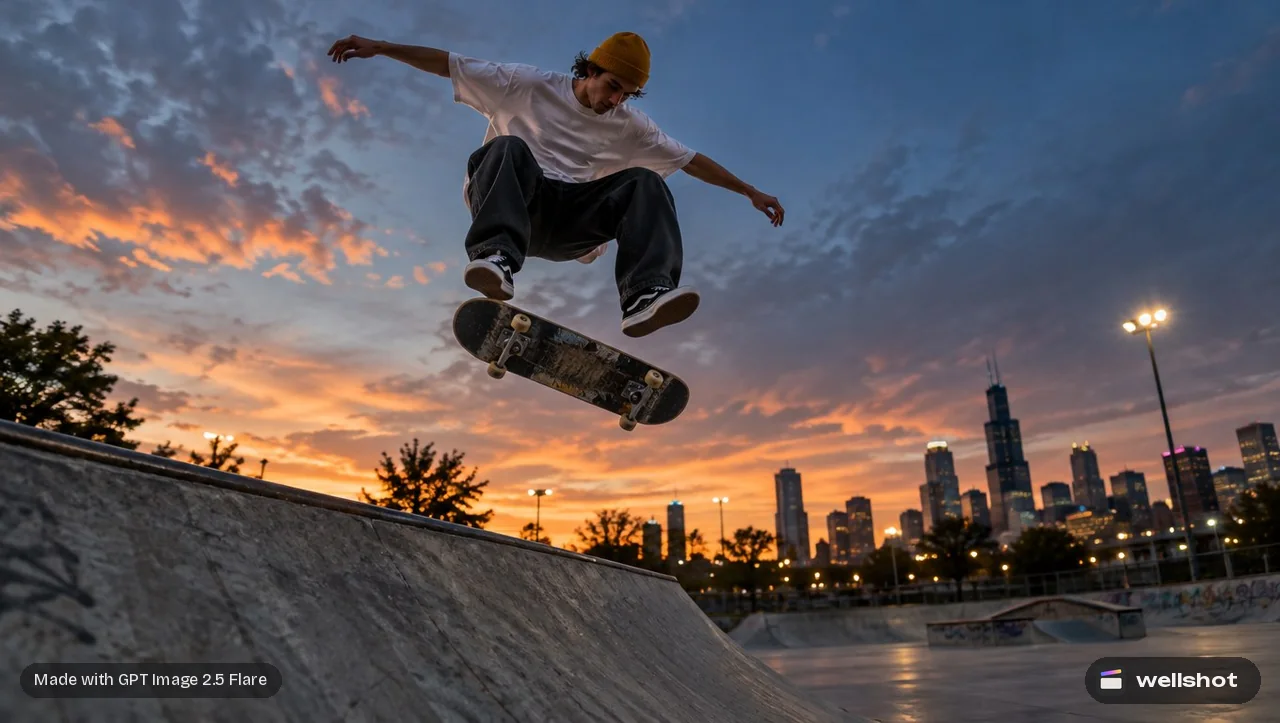
Follow the clip or follow the picture
Motion Control has one main choice, and it changes both the framing and the length limit.
Follow the clip (up to 30 seconds). The result follows the clip's framing and orientation. Use it for complex moves: a full dance routine, a sports sequence, a performance where the body travels through the frame. This is the default.
Follow the picture (up to 10 seconds). The result keeps the framing of your picture. Use it when the picture's composition matters, or with camera moves. If your clip is longer than 10 seconds, trim it, or switch to Follow the clip.
A quick way to decide: if you care most about the movement, follow the clip; if you care most about the shot as you designed it in the picture, follow the picture.
Recording a good motion clip
The clip is the performance, so a little care here pays off:
- One performer, whole body in frame if the moves use the whole body. Feet cut off in the clip means guessing in the result.
- Steady camera. A phone on a tripod or propped against something works. Shake reads as part of the motion.
- Plain background and even light. It helps the moves read clearly.
- Match the pose. If the character in your picture stands roughly like the performer at the start of the clip, the transfer starts cleanly.
- Keep it within the limit. Up to 30 seconds following the clip, 10 following the picture.
The clip can be your own phone footage, stock you have the rights to, or a take generated by any video model in Wellshot.
Making the character picture
Any image model in Wellshot can make the character. A few tips:
- Full body, clear limbs for full-body moves; hands visible for gesture-heavy performances.
- A neutral pose close to the performer's starting pose.
- The final look. Costume, style and colors come from the picture, so get them right here.
If the same character appears in several shots, build a cast sheet first so it stays the same everywhere; see consistent characters with AI. For precise edits to a character still, GPT Image 2.5 Flare and the other image models take reference pictures.
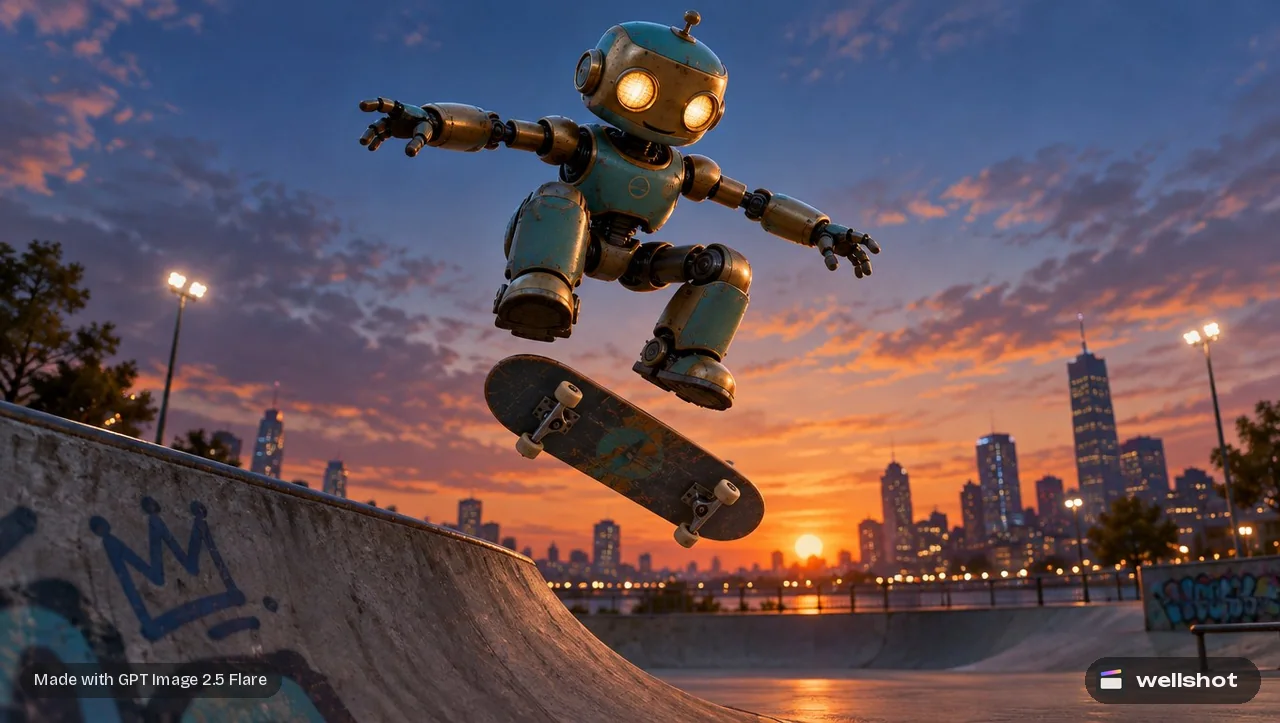
Worked example: a robot skater
The goal: a 6-second shot of a cartoon robot doing a skate trick, using a real skater's run as the motion.
- Record the move. Film a friend doing the trick on a phone, whole body in frame, camera on a tripod. Upload it to the project.
- Make the robot. In the Studio, generate the character:
Full-body 3D cartoon robot standing on a skateboard at the top of a concrete
ramp, rounded white shell with orange panels, big round blue eyes, slight
crouch with arms out for balance. Bright afternoon light, clear sky. 16:9.
- Add the node. On the shot's Canvas, press Tab and search for Kling 3.0 Motion Control, or find it under Video, "Copy motion".
- Connect. Robot picture to @Image 1, skate clip to @Video 1.
- Choose the framing. Follow the clip, since the skater travels through the frame.
- Optionally add words. For example, "keep the robot's orange panels and blue eyes".
- Run, check the take, then drop it on the timeline.
Want it slower at the top of the trick? Run the result through Topaz Slow motion; see the AI video upscaler and slow motion guide.
Open Kling 3.0 Motion Control in Wellshot to try it on your own clip.
Motion Control vs swapping a character
Wellshot has several tools that keep a performance and change who performs it. They work in opposite directions:
| Tool | What stays | What changes |
|---|---|---|
| Kling 3.0 Motion Control | The moves from the clip | Everything else comes from your picture |
| Wellshot Stand-In | The clip: moves, timing, camera, sound | The person, clothes, a thing, the place or the whole frame you describe |
| MiniMax H3 Max Recast | The clip, its cuts and sound | Up to 4 people |
| Wan 2.2 Animate · Swap character | The clip's moves, camera and scene | One person (silent, up to 720p) |
Rule of thumb: if you want to keep the scene in your clip, swap the person with Wellshot Stand-In or one of the other swap tools (more in replace a person in a video). If you want to keep only the moves and put them into a world from your picture, use Motion Control.
Faces: use only faces you have the rights to use, in the picture and in the clip. Under Wellshot's Terms, the person making the video is responsible for them.
On the Canvas you can chain Motion Control with the rest of a shot's graph; see the node-based AI workflow guide.
FAQ
What is Kling Motion Control?
It is Kling 3.0's motion transfer: the character in a picture performs the moves from a clip. In Wellshot it is a Canvas node with a picture input (@Image 1) and a clip input (@Video 1).
How long can a Kling Motion Control video be?
Up to 30 seconds when the result follows the clip's framing, or up to 10 seconds when it keeps the picture's framing.
Can I copy a dance from a phone video onto a cartoon character?
Yes. Use the phone clip as @Video 1 and a picture of the cartoon character as @Image 1. Keep the dancer's whole body in frame and the camera steady.
Does Kling Motion Control keep the sound?
It can keep the clip's own sound, so music or counts from your recording stay with the moves.
Do I need a prompt for Motion Control?
No, words are optional. The picture and the clip do the work; a short prompt can help keep details of the character.
Make it in Wellshot
Every model in one studio. Prompt it, wire it as nodes, or let the Director run it.