Node Based AI Video Workflow: How the Wellshot Canvas Works
A node based AI video workflow on the Wellshot Canvas: model nodes with real inputs, numbered references, editing nodes, caching and a worked example.
By the Wellshot team · · 5 min read
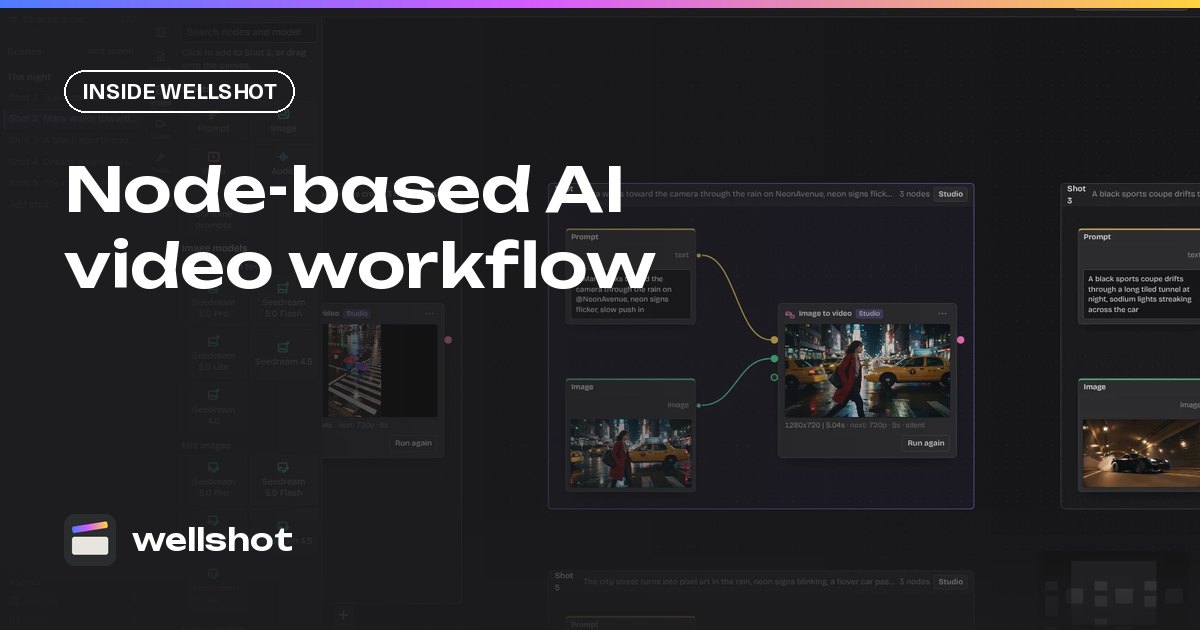
A node based AI video workflow lets you build a shot as a graph: pictures, prompts and models are boxes, and wires show what feeds what. In Wellshot that's the Canvas. A whole scene sits on one board, each shot is a group, every model has its own nodes with its real inputs, and re-running only executes the nodes that changed.
This post explains how the Canvas is organised, how inputs and references work, which editing nodes you get, and walks through building a product shot from still to video.
The Canvas is the same shot, as a graph
Wellshot has four views over one project: Director, Studio, Canvas and Editor. On the Canvas you see the scene as a board, and each shot on it is a group holding that shot's node graph. Anything you do here shows up in the other views. A take generated on the Canvas appears in Studio and in the Editor's media; a shot the Director planned appears here as a group, ready to rewire.
Groups keep shots separate: wires never cross between shots. If you drag an unconnected node onto another shot's group, it moves into that shot.
Model nodes with real inputs
Each model has its own nodes, one per task, with the inputs that task really takes. For example, "Seedance 2.5 · Reference to video" has picture, clip and sound inputs; an image edit node has picture inputs.
The node list is organised by media, then task, then model:
| Media | Tasks |
|---|---|
| Image | Generate from text, edit images |
| Video | Generate from text or image, generate from references, edit videos, extend videos |
| Audio | Speech, sound effects, ambience |
A model shows under every task it can do, so Seedance 2.5 appears under all four video tasks, while Seedance 1.0 Pro Fast appears only under generate from text or image.
Numbered inputs and how to name them
Reference inputs are numbered: Image 1, Image 2, and so on. The "+" on a node adds another, up to that model's limit (for example 30 pictures, 10 clips and 10 sounds on Seedance 2.5 reference to video, or 14 pictures on Nano Banana 2.1). In the prompt you refer to them as @Image 1, @Video 1, @Audio 1. Naming each one's role in the prompt makes a big difference; see AI image editing with reference images.
Editing nodes (no AI)
Not every step needs a model. The Canvas has plain editing nodes that prepare inputs and finish outputs:
- Crop, resize, rotate & flip
- Color adjust, levels, blur, sharpen, invert, channels
- Painter: draw on a picture, for example to mark the area a model should change
- Compositor with blend modes, apply mask, solid color
- Extract frame from video: pull a still out of a clip, for a new start frame or a reference
- Preview & save, combine prompts
These are what make a graph more than a chain of generations. You can crop a reference to the part that matters, mark the area to change with the Painter, or extract the last frame of one clip to start the next.
Caching and branching
Two things make the Canvas faster than redoing everything by hand:
Only changed nodes re-run. Outputs are cached. If you change the prompt on the video node, the image nodes upstream don't run again; their saved outputs feed straight in.
Branch variations side by side. Wire the same inputs into two model nodes, or two prompts into the same model, and run both. You get the takes next to each other to compare. This is the easiest way to test, say, Seedance 2.5 against Kling 3.0 on an identical start frame.
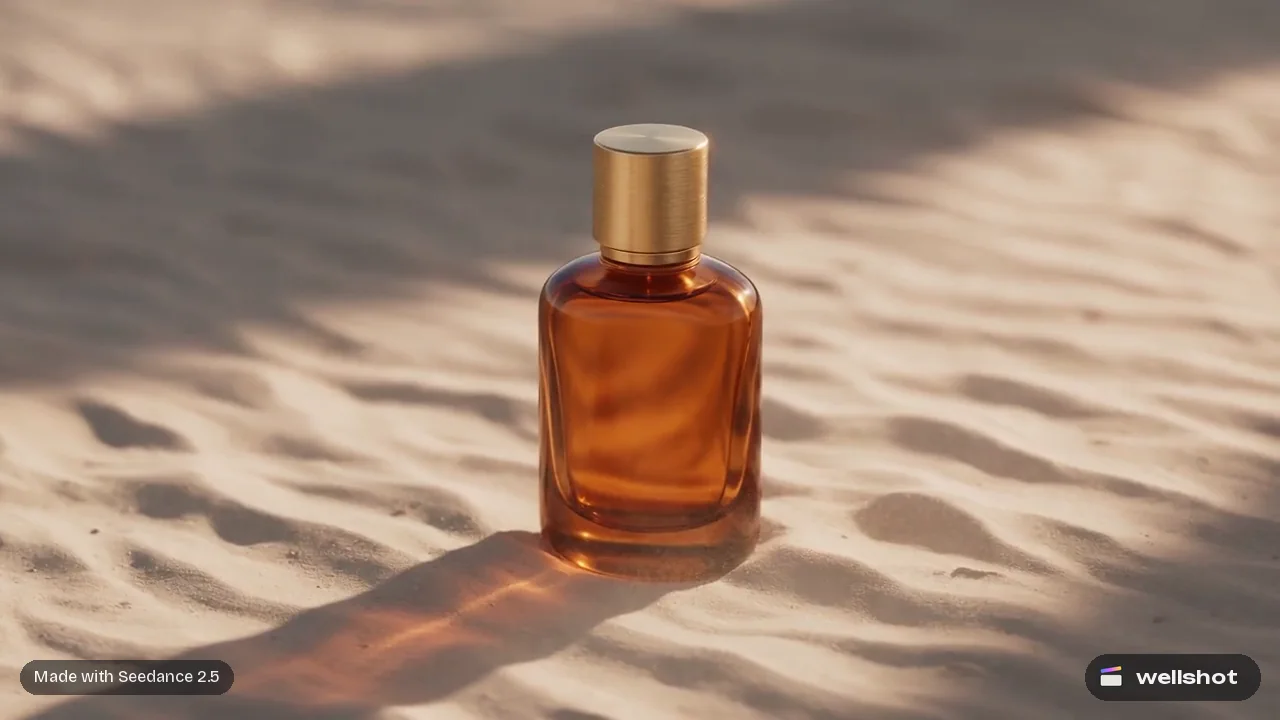
Worked example: product still to orbit shot
Here's a small graph you can build in a few minutes.
- Press Tab on an empty part of the shot group and search for Seedream 5.0 Pro's edit images node.
- Connect your product photo to Image 1 and a background picture to Image 2.
- Write the image prompt and run it. The credit price shows on the node's button before you run.
- Drag a wire from the image output onto empty canvas. Wellshot offers only nodes that accept a picture; pick "Seedance 2.5 · Text/Image to video" and it connects.
- Write the video prompt below, set length and aspect ratio, and run.
Image prompt (Seedream 5.0 Pro, edit images):
Place the bottle from @Image 1 on the marble plinth from @Image 2.
Keep the bottle's shape, cap and label exactly. Soft top light, dark backdrop.

Video prompt (Seedance 2.5, start frame from the image node):
Slow orbit around the bottle, 180 degrees, camera at bottle height.
Light glints travel across the glass. Background stays dark and still. 8 seconds.
- Not happy with the motion? Change only the video prompt and run again. The image node is cached, so only the video re-runs.
- Want to compare? Drop a second video node, wire the same image in, and run both side by side.
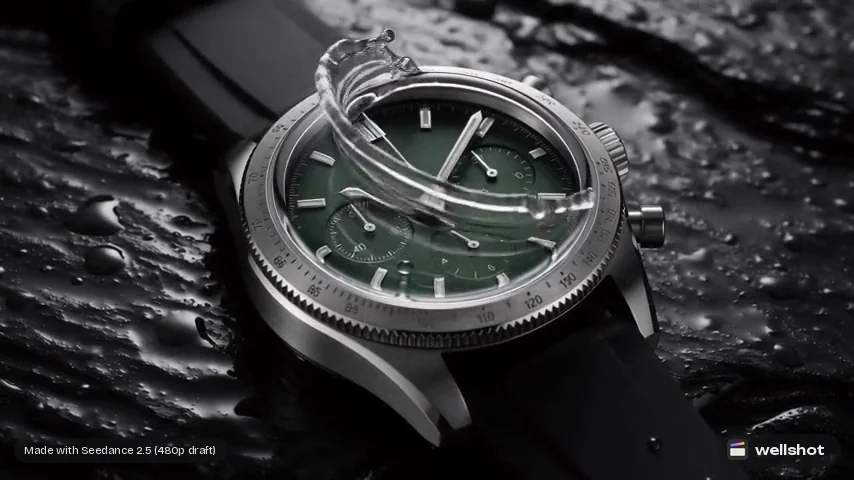
For cheap motion tests before a full render, Seedance 2.5 has draft mode: a 480p preview you can later render at full quality with the same prompt, inputs, length and seed.
When to use the Canvas vs the Director or Studio
- Use the Director to plan a whole film from a conversation. See the AI video director agent post.
- Use Studio for one shot with a prompt panel, including cinema mode for camera, lens and lighting.
- Use the Canvas when a shot has several steps (edit, then animate, then extend), when you're mixing several references, or when you want to branch and compare.
They're views over the same shot, so you can start in one and finish in another. For the keys and right-click menus that speed this up, read AI node editor tips. Every showcase clip on the site also opens as its exact graph with Recreate, which is a good way to learn.
Build your first graph: open the Canvas.
FAQ
What is a node based AI video workflow?
It's a way of building a shot as a graph of connected nodes, where each node is an input, an edit or a model, and wires carry pictures, clips and sound between them. Wellshot's Canvas works this way.
Do I have to re-run the whole graph after a change?
No. Outputs are cached, so re-running only executes the nodes that changed and anything downstream of them.
Can I compare two AI models on the same input?
Yes. Wire the same inputs into two model nodes and run them side by side to compare the takes.
Is the Canvas separate from the rest of Wellshot?
No. It's one of four views over the same project. Shots the Director plans appear on the Canvas, and takes made on the Canvas appear in Studio and the Editor.
Make it in Wellshot
Every model in one studio. Prompt it, wire it as nodes, or let the Director run it.