GPT Image 2.5 Flare vs Sunburst: Which One to Use
GPT Image 2.5 Flare vs Sunburst in Wellshot: sharp text and layouts, fine detail over many edits, 10 references, 4K and quality levels. Which to pick.
By the Wellshot team · · 6 min read
GPT Image 2.5 is OpenAI's image model, and Wellshot has it in two versions: Flare, for sharp text, clean layouts and precise edits, and Sunburst, which is slower but keeps fine detail across many rounds of edits. Both make pictures from text or edit with up to 10 reference pictures, at 1K, 2K or 4K. Short version: start with Flare, and switch to Sunburst when a picture has to survive a long chain of changes.
Below is what the two share, where they differ, a side-by-side made from the same prompt, and how to get good results from both in Wellshot.
GPT Image 2.5 at a glance
Flare and Sunburst take the same inputs and the same settings, so you can swap one for the other on a node or in the Studio without rebuilding anything.
| GPT Image 2.5 Flare | GPT Image 2.5 Sunburst | |
|---|---|---|
| Maker | OpenAI | OpenAI |
| Tasks | Text to image, edit with references | Text to image, edit with references |
| References | Up to 10 pictures | Up to 10 pictures |
| Sizes | 1K, 2K, 4K | 1K, 2K, 4K |
| Aspect ratios | 1:1, 3:2, 2:3, 4:3, 3:4, 16:9, 9:16 | 1:1, 3:2, 2:3, 4:3, 3:4, 16:9, 9:16 |
| Quality levels | Draft to Max | Draft to Max |
| Strength | Sharp text, layouts, precise edits | Keeps fine detail across many edits |
| Speed | Quicker | Slower |
There is no 21:9 option on either. If you need an ultra-wide frame for a cinema still, use a Seedream or Nano Banana model; the best AI image models guide lists which ones do it.
Quality levels: Draft to Max
Both versions offer five quality levels, and the level changes the price as well as the result:
- Draft: fast and the cheapest, for trying ideas.
- Standard: good for most pictures.
- High: sharp detail and text. This is where a new node starts.
- Extra high: finer detail, about 1.8 times the price of High.
- Max: the finest detail, about 4 times the price of High.
A sensible routine: explore composition at Draft or Standard and 1K, then re-run the one you like at High, and only go to Extra high or Max (or 2K and 4K) for the final frame. The price in credits shows on the button before you run, so you can see the jump before you commit. The illustrations on this page cost a few credits each at 1K.
Flare vs Sunburst: the same prompt, side by side
To compare them fairly we gave both versions the same prompt for a film poster, with a title that has to be spelled correctly and placed well.
Vertical film poster, 2:3. Title "NIGHT SWIMMERS" in large condensed white
capitals across the top third. Two teenagers floating on their backs in a
dark outdoor pool at night, seen from directly above, turquoise underwater
lights, ripples catching the light. Small credit block at the bottom.
Moody, quiet, 1990s indie film feel.
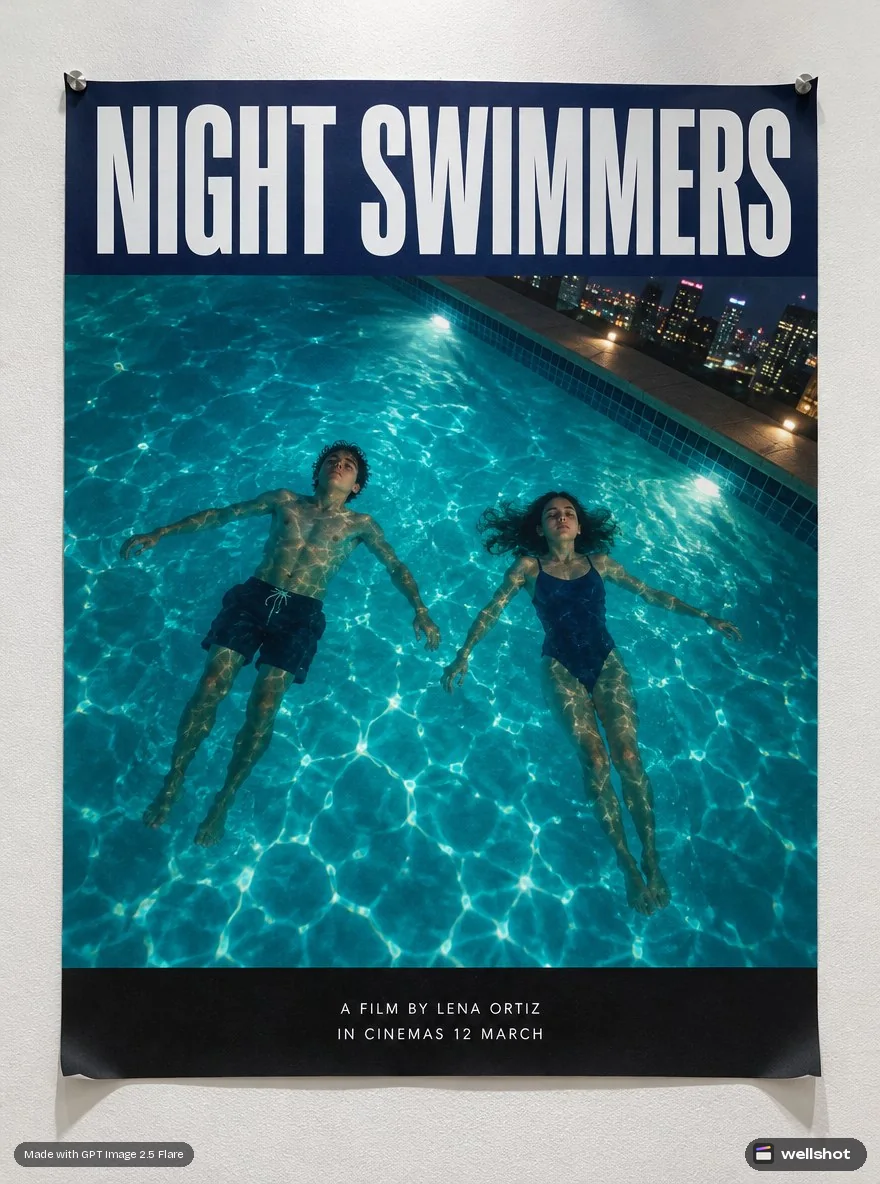
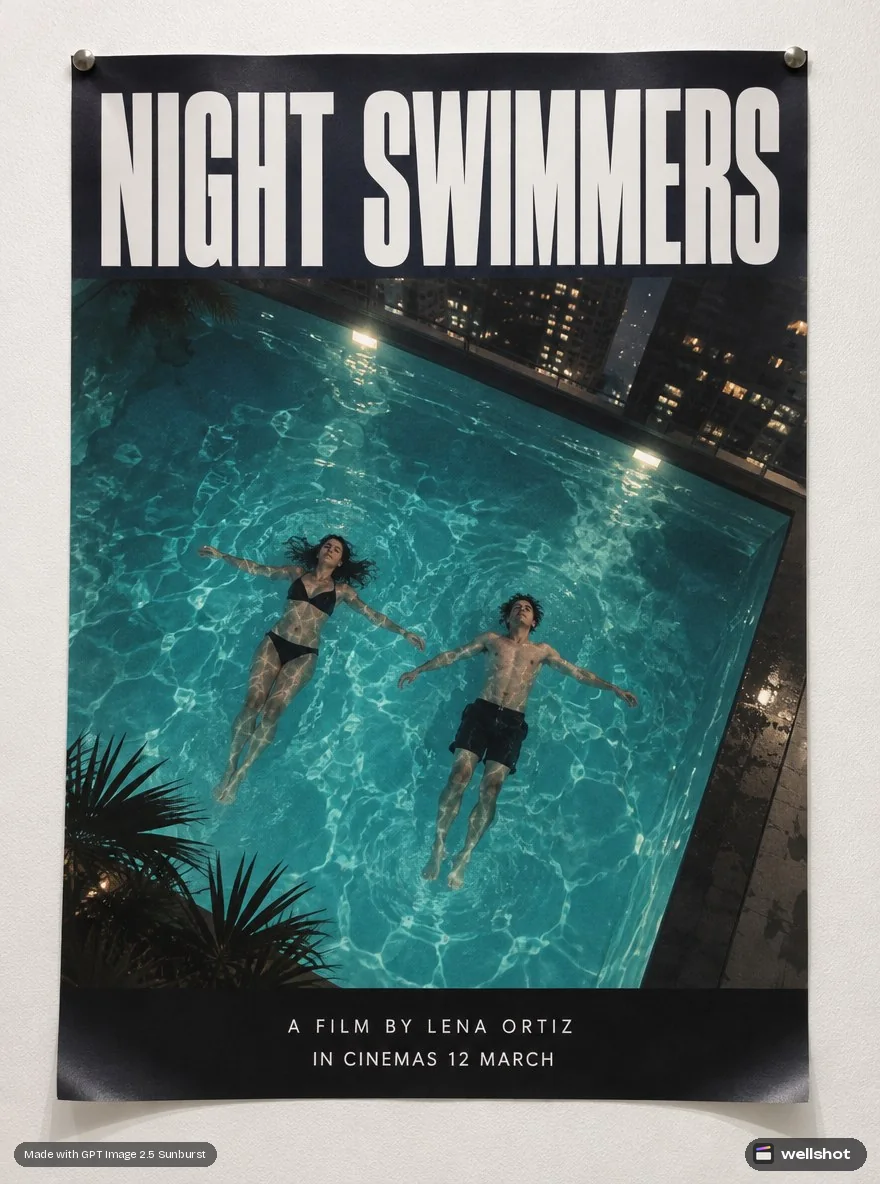
Run a pair like this yourself before choosing for a whole project. Put both models on the Canvas, wire the same prompt into each, and the results sit next to each other on the board.
When to pick Flare or Sunburst
Pick Flare for text, layouts and quick edits
Flare is the everyday choice. Pick it when:
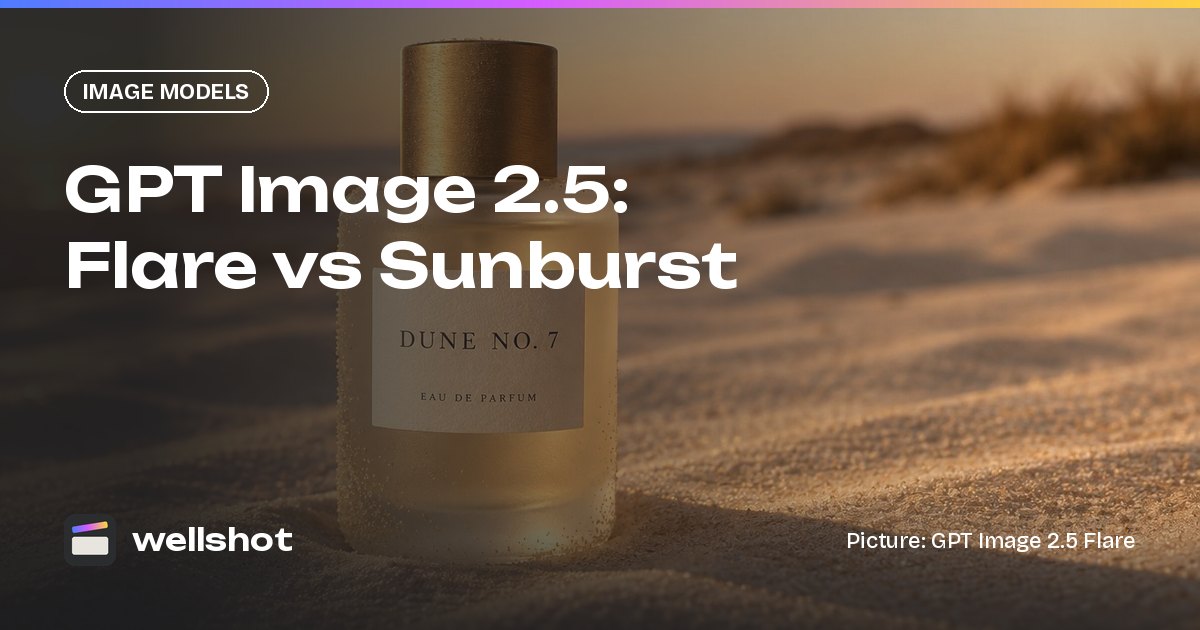
- The picture has words in it. Posters, title cards, product labels, signs in a scene, packaging. The cover of this post, a perfume bottle labelled "DUNE NO. 7", was made with Flare.
- The layout matters. A product centered with space for copy, a split-screen comparison, a storyboard panel with a clear focal point.
- You need one precise edit. Change the label, swap the background, recolor the jacket, and leave the rest alone.
- You are iterating fast. It is the quicker of the two, which adds up over a session of tries.
Pick Sunburst for long chains of edits
Sunburst trades speed for staying power. Pick it when:
- A picture goes through many rounds of edits. Each round of changes can soften detail. Sunburst is built to keep fine detail across a long chain of edits, so round eight still looks like round one where you didn't touch it.
- Texture is the point. Fabric weave, skin, wood grain, small print on a prop that has to stay readable after several changes.
- The image is a master. A key art frame or a character still that many later shots will be built from.
If you only need one or two edits, Flare is usually enough and quicker.
Editing with references
Both versions take up to 10 reference pictures. Connect them on the Canvas or add them in the Studio, then name them in the prompt as @Image 1, @Image 2 and so on.
Put the bottle from @Image 1 on the wet black stone from @Image 2.
Keep the label text "DUNE NO. 7" exactly as it is. Low side light from
the left, soft reflection on the stone, dark warm background. 4:3.
Tips that help with both:
- Say what stays. "Keep the label text exactly as it is" or "keep her face and hair unchanged" does more than describing the change alone.
- Quote the words you want printed. Put text in quotation marks and say where it goes and how big.
- Mark the area. On the Canvas, the Painter node lets you draw on a picture to show where the change should happen.
- One change per round when precision matters. Chain edits on the Canvas so each step is saved and you can branch back.
For more on this technique across all image models, read AI image editing with reference images, and for keeping a person the same across many pictures, consistent characters with AI.
How to use GPT Image 2.5 in Wellshot
- Open a shot in the Studio and choose image mode, or open GPT Image 2.5 Flare in Wellshot.
- Pick Flare or Sunburst in the model menu.
- Set the aspect ratio, size (1K, 2K or 4K) and quality level.
- Add reference pictures if you are editing, and name them in the prompt.
- Check the price on the button, then run. Every take is saved on the shot.
On the Canvas, each version has its own nodes under Image, for generating from text and for editing images. A GPT Image 2.5 still makes a good start frame for video: wire it into the first frame of Kling 4.0 or FLUX 3 Video and animate it. For product work, see the AI product video guide.
How does it compare with Google's premium image model? Nano Banana Pro also excels at text and detail and adds 21:9 and up to 14 references; GPT Image 2.5 gives you the five quality levels and the Flare or Sunburst choice.
FAQ
What is the difference between GPT Image 2.5 Flare and Sunburst?
Flare is quicker and is strongest at sharp text, layouts and precise edits. Sunburst is slower and keeps fine detail across many rounds of edits. Both take up to 10 references and render at 1K, 2K or 4K.
Can GPT Image 2.5 make 4K images?
Yes. Both Flare and Sunburst render at 1K, 2K or 4K, in 1:1, 3:2, 2:3, 4:3, 3:4, 16:9 or 9:16.
How many reference images does GPT Image 2.5 take?
Up to 10 pictures, named in the prompt as @Image 1 to @Image 10.
How much does GPT Image 2.5 cost in Wellshot?
It is paid in credits, and the price depends on the size and the quality level: Extra high costs about 1.8 times High, and Max about 4 times High. The exact price shows on the button before you run.
Is GPT Image 2.5 good at text in images?
Yes, that is Flare's main strength. Put the words in quotation marks in the prompt and say where they go.
Make it in Wellshot
Every model in one studio. Prompt it, wire it as nodes, or let the Director run it.