AI Video Generator Online: The Wellshot Studio Prompt Panel
How the Wellshot Studio works as an AI video generator online: one prompt panel for image, video, audio and cinema mode, with references, seed and drafts.
By the Wellshot team · · 6 min read
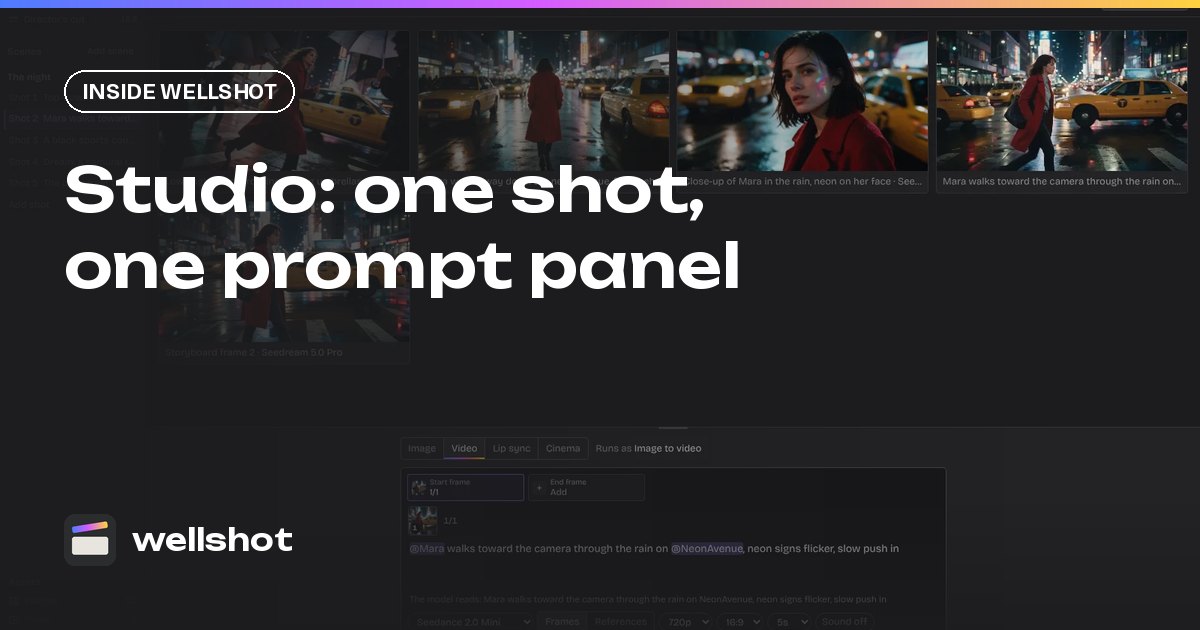
Wellshot's Studio is an AI video generator online that fits one shot on one prompt panel: you write the prompt, add reference pictures, pick a model, set aspect ratio, resolution, length and sound, and press generate. It runs in the browser, every take is saved to the shot, and the same shot is also visible in the Canvas, the Director and the Editor, so nothing you make in Studio gets stranded.
This post walks through every control on the panel, what each one is for on a real job, and a worked example you can copy.
What the Studio is (and how it fits the rest of Wellshot)
A Wellshot project holds scenes, and each scene holds shots. Each shot has a node graph, its takes and its assets. Studio is one of four views over that same data:
- Director is a chat agent that plans a whole film with you. See the AI director agent.
- Studio is the prompt panel for one shot, covered here.
- Canvas shows the same shot as a node graph. See node-based AI video workflow.
- Editor is the timeline where takes become a cut.
Because the views share data, a take you generate in Studio appears in the project's media and can be dropped on the timeline. If you later open the shot on the Canvas, you see the nodes behind it. Studio is the fastest place to work when you know what one shot needs and just want to iterate.
The controls on the prompt panel
Here is everything on the panel and when you would touch it.
| Control | What it does | When it matters |
|---|---|---|
| Prompt | Describes the shot | Always. Subject, action, camera, light. |
| Reference pictures | Start frame, end frame, or references to follow | Product shots, character continuity, locations |
| Model picker | Chooses the model for this shot | Trade quality, length, sound and cost |
| Aspect ratio | 16:9, 9:16, 1:1 and others, depending on the model | Platform: cinema, vertical social, square |
| Resolution | 480p up to 4K, depending on the model | Drafts low, finals high |
| Length | Seconds per take, within the model's range | Match the edit you planned |
| Sound on/off | Built-in sound on models that support it | Ambience and effects in the same take |
| Seed | Fixes the randomness | Reproduce a take, or change one thing at a time |
| Draft mode | Cheap 480p preview on Seedance 2.5 | Approve motion before paying for full quality |
Modes: image, video, audio and cinema
The panel switches between four modes:
- Image makes stills from text, or edits a picture using references.
- Video either animates a start frame and an optional end frame, or follows reference pictures. Models like Seedance 2.5 also take reference clips and sounds.
- Audio generates speech, sound effects and ambience with Seed Audio 1.0. See the AI sound effects generator guide.
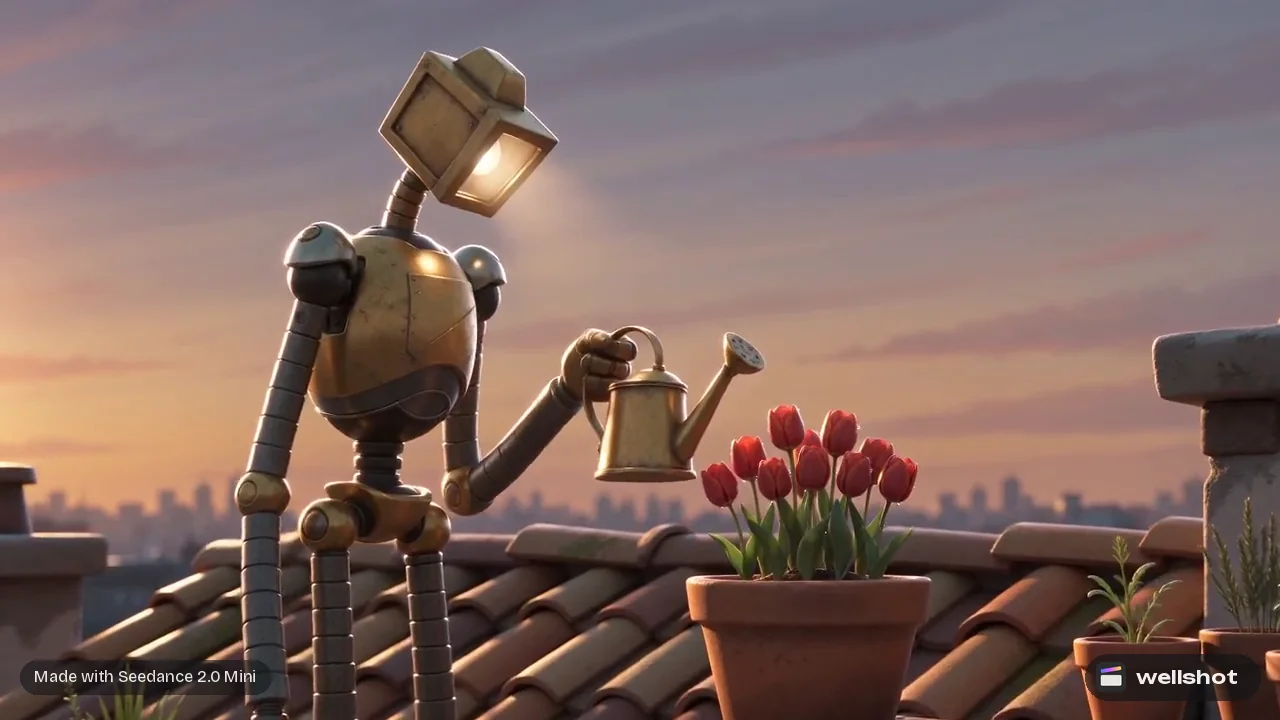
- Cinema turns camera language into controls, and makes either a still or a moving shot.
Cinema mode in detail
Cinema mode is for people who think in camera reports rather than adjectives. Instead of typing "cinematic", you choose:
- Camera body: large-format digital, full-frame cinema digital, Super 35 digital, or 65mm, 35mm or 16mm film.
- Lens: modern clean prime, vintage prime, anamorphic, macro, tilt-shift or soft-focus diffusion.
- Focal length: 14, 24, 35, 50, 85 or 135 mm.
- Aperture: f/1.4 to f/11.
- Camera moves, in order: slow push in, pull out, pan, tilt, orbit, tracking, handheld, crane up or down, dolly zoom, whip pan, rack focus, POV or static.
- Genre, era (1920s to near future) and tempo.
- Lighting: soft daylight, golden hour, blue hour, low-key, high-key, backlit silhouette, practical, window, neon, candlelight, hard noon sun and more.
- Color palette: warm sand, teal and amber, bleach bypass, pastel and others.
Stacking moves in order is the useful part. "Slow push in, then rack focus" reads very differently from the reverse, and the panel keeps that order explicit. For more on wording moves, see AI video camera movement prompts. You can open cinema mode in Wellshot to try the settings below.
Worked example: a product shot from a still
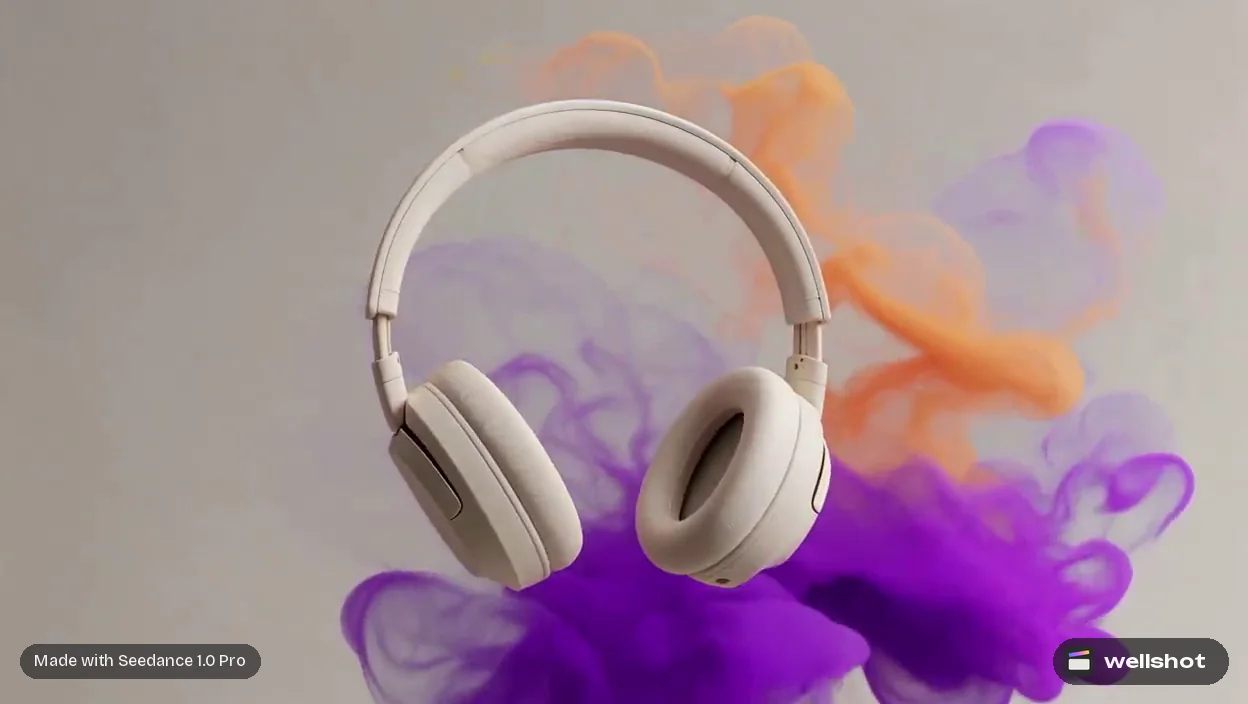
Say a client sends a clean product photo of headphones and wants a moody five-second loop for social. In Studio:
- Switch to Video mode and drop the product photo in as the start frame.
- Pick a model. For a cheap first pass, Seedance 2.0 Mini or Seedance 2.5 in draft mode both work.
- Set aspect ratio to 9:16 for vertical, length to the shortest your model allows, and sound on if you want ambience.
- Write the prompt:
The headphones from the start frame float slowly in dark studio space.
Thin smoke drifts across them from the left and curls around the ear cups.
Slow orbit to the right, shallow depth of field, single hard rim light
from behind, deep black background. No text, no logos added.
Sound: soft low hum and a faint airy whoosh as the smoke moves.
- Generate. Every take is saved to the shot, so you can compare versions side by side instead of losing the last one.
- When one is close, lock the seed and change one thing at a time: the light direction, the speed of the orbit, the smoke density.
Seed is what makes this method work. With the seed fixed, a change in the result comes from the change you made in the prompt, not from chance.
Draft first, then render the one you like
On Seedance 2.5, draft mode makes a cheap 480p preview. When you like a draft, you render it at full quality, up to 1080p, from the same draft: same prompt, inputs, length and seed. The final matches what you approved, instead of being a fresh roll of the dice. The full workflow is in Seedance draft mode explained.
The cost of each generation shows on the button before you press it, so you always know what a take will spend. Failed generations refund automatically.
When to leave the Studio
Studio is built for one shot. Move to another view when the job changes:
- Many shots with a story: hand it to the Director, which writes the script, builds the storyboard and picks a model per shot.
- Multi-step pipelines: open the shot on the Canvas when you need an image edit, then a video, then an extend, chained together.
- Cutting: the Editor puts takes on a timeline with your music, voice and titles. See the online video editor for AI video.
If you only need one strong shot today, the Studio panel is the shortest path from idea to take.
FAQ
Is there a free AI video generator online in Wellshot?
Wellshot works on credits: each generation has a credit cost that is shown on the button before you run it. Cheaper models and draft mode let you test ideas for fewer credits before you render a final.
Can I use my own image as the first frame?
Yes. In Video mode you can add a start frame, and on models that support it an end frame too, and the model animates between them. You can also use reference pictures for the model to follow instead of a fixed first frame.
What does the seed setting do?
The seed fixes the randomness of a generation. Keep the same seed and prompt to reproduce a take, or keep the seed and change one detail so you can see exactly what that change did.
Can the Studio make video with sound?
Yes, on models with built-in sound. Seedance models let you switch it on or off, Gemini Omni Flash always generates sound, and Kling 3.0 has it as an option.
What is cinema mode?
Cinema mode replaces vague style words with camera controls: camera body, lens, focal length, aperture, ordered camera moves, era, lighting and color palette. It can make a still or a moving shot.
Make it in Wellshot
Every model in one studio. Prompt it, wire it as nodes, or let the Director run it.