Edit Video With AI: Recast and Restyle Clips With Seedance
How to edit video with AI in Wellshot: swap the person while keeping the motion, restyle a clip, and finish the cut on a timeline. Prompts included.
By the Wellshot team · · 5 min read
To edit video with AI in Wellshot, you give an edit-video model (Seedance 2.5 or the Seedance 2.0 family) an existing clip and describe what should change. It remakes the clip with the same motion, framing, location and light, but with a new person, a new style or another change you ask for.
That is different from cutting and trimming, which you do in the timeline Editor. This post covers both: AI edits that change what is in the shot, and the Editor where you assemble the result.
Two kinds of video editing in Wellshot
People mean two things by "editing" and Wellshot does both.
| AI edit (edit video task) | Timeline edit (Editor) | |
|---|---|---|
| What changes | The content of the shot: person, style, look | The order, length and mix of shots |
| Tools | Seedance 2.5, 2.0, 2.0 Fast, 2.0 Mini | Split, slip, ripple, titles, transform, audio tracks |
| Uses credits | Yes, like any generation | No AI generation involved |
| Typical use | Recast a performance, restyle a clip | Build the cut, add music and titles, export |
Most projects use both: you fix the shot with an AI edit, then put it in its place on the timeline.
Which models can edit video
Edit video is one of the four tasks on the Seedance 2.5 and 2.0 models.
| Model | Length | Resolution | Note |
|---|---|---|---|
| Seedance 2.5 | 4–30 s | 480p, 720p, 1080p | Most references: 30 pictures, 10 clips, 10 sounds |
| Seedance 2.0 | 4–15 s | 480p to 4K | The 4K option |
| Seedance 2.0 Fast | 4–15 s | 480p, 720p | Quicker and cheaper than 2.0 |
| Seedance 2.0 Mini | 4–15 s | 480p, 720p | Cheapest of the 2.0 family |
In the Canvas, find these under Video, then "edit videos", then the model. The input clip goes into @Video 1 and any reference pictures go into @Image 1, @Image 2 and so on. For specs on each model, see the Seedance 2.5 guide and the Seedance 2.0 guide.
Recast: keep the motion, swap the person
Recast is the most common AI edit. You upload a clip and a picture of a person, and the model remakes the same performance with someone new: same motion, framing, location and light.
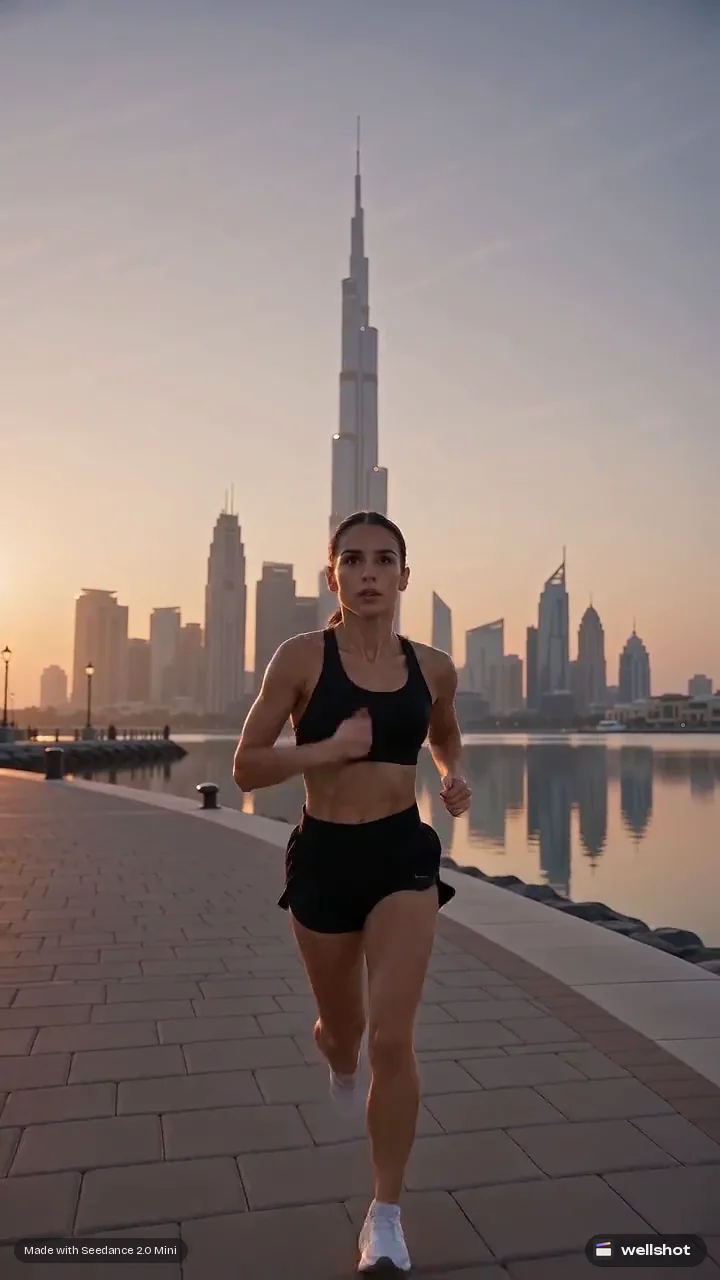
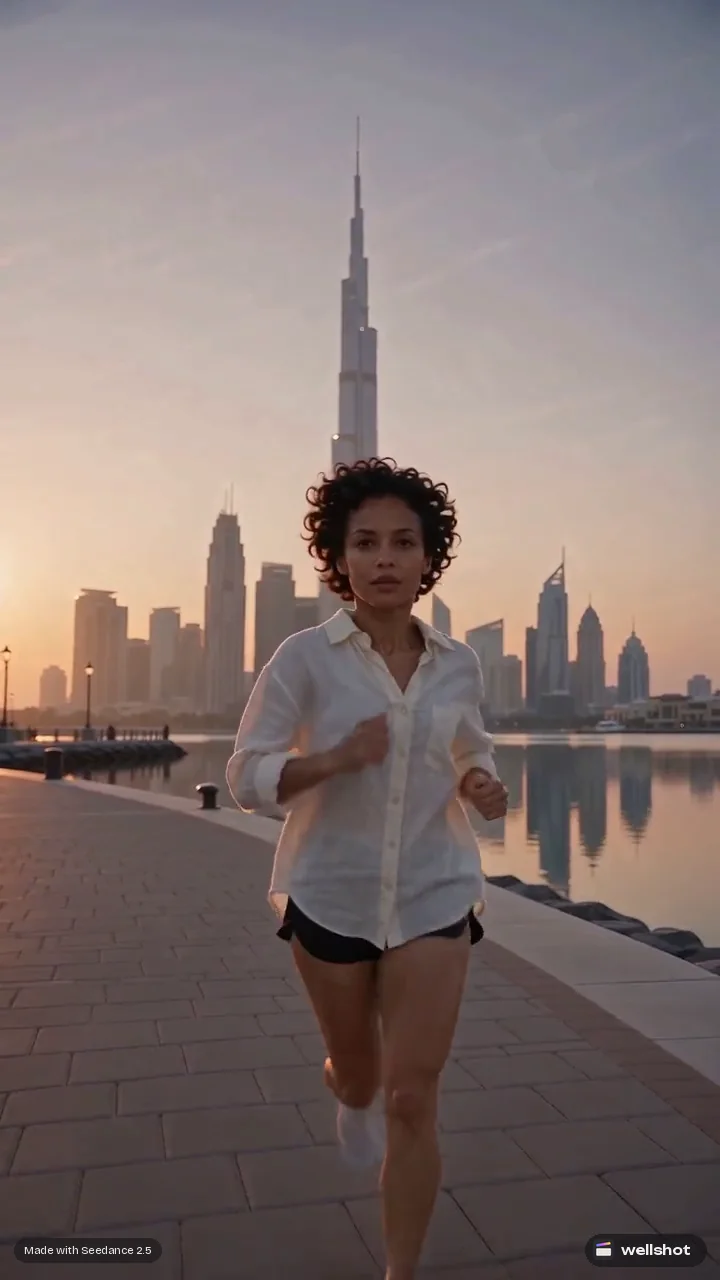
Recast is useful when:
- A take has the perfect movement but the wrong casting.
- You want the same shot in several versions for different markets.
- You shot a stand-in and want to place your character into the performance.
Use only faces you have the rights to use. The full walkthrough is in replace a person in video with AI, and you can recreate the recast example to open the exact graph.
Restyle a clip
The same task can change the whole look of a clip while keeping its motion. For example, turn a live-action style shot into hand-drawn anime.
Restyle @Video 1 as hand-drawn anime: clean ink outlines, flat cel
shading, painted background. Keep the exact motion, camera move and
timing of the original. Neon reflections on the wet street stay, rendered
as bold color shapes. Rain as fine white strokes.
Tips for restyling:
- Say what to keep. "Keep the exact motion, camera move and timing" stops the model from reinventing the shot.
- Name the style in concrete terms. Line quality, shading, color treatment, background treatment.
- Use a reference picture for the look if you have one, and name it as @Image 1.
How to edit a clip in Wellshot, step by step
- Get the clip into the project. Upload it, or use any earlier take from the project's media. Every generation is saved as a take.
- Open the Canvas and add a node with Tab search, right-click or the palette. Pick Video, then "edit videos", then Seedance 2.5 or a 2.0 model.
- Wire inputs. Clip into @Video 1. A person's picture or a style reference into @Image 1.
- Write the prompt. What changes, then what stays the same.
- Check the price on the button and run. If it fails, credits come back automatically.
- Compare variations. Branch the node with different prompts and look at them side by side.
- Swap it into the cut. In the Editor, "Swap take" on that shot updates the timeline.
If the edit is right but the clip ends too early, follow it with the extend task; see how to extend AI video.
Finish in the Editor
The Editor is a timeline in the browser. Once your edited takes are ready:
- Drop them on video tracks in story order.
- Add audio tracks for your own music, voice-over or sound.
- Split, slip and ripple to tighten timing, with snapping.
- Add titles with control over font, color, size, position, opacity, rotation, letter spacing and background.
- Use transform for position, zoom, rotation and flip.
- Set volume or mute per clip, then export.
More on the timeline in the online video editor for AI video. If you would rather not build the cut by hand, the AI director agent assembles a first cut in story order with each clip trimmed to its planned length.
Ready to try an edit? Open Seedance 2.5 in Wellshot.
FAQ
Can AI edit an existing video?
Yes. In Wellshot, the edit video task on Seedance 2.5 and the Seedance 2.0 family takes your clip and remakes it with the change you describe, keeping the motion, framing, location and light.
How do I replace a person in a video with AI?
Use Recast: upload the clip and a picture of the new person, and an edit-video model remakes the same performance with them. Only use faces you have the rights to use.
Can I change the style of a video with AI?
Yes. Describe the new style in the prompt, for example hand-drawn anime, and say what to keep, such as the motion and camera move. You can add a style reference picture too.
How much does it cost to edit a video with AI?
An edit video run costs credits like any generation, and the exact price shows on the button before you run it. Failed generations refund automatically, and plan credits refresh every month.
Make it in Wellshot
Every model in one studio. Prompt it, wire it as nodes, or let the Director run it.