How to Extend AI Video Clips With Seedance in Wellshot
How to extend AI video in Wellshot: continue a clip that ends too soon with Seedance 2.5 or 2.0, plus prompts, length limits and when to cut instead.
By the Wellshot team · · 5 min read

To extend AI video in Wellshot, you feed a clip into the extend video task on Seedance 2.5 or a Seedance 2.0 model and describe what happens next. The model continues the shot from where it ends, so a take that was almost right but stopped too soon gets the extra seconds it needed.
This post covers which models can extend, how to set it up in the Canvas and Studio, how to write a continuation prompt, and when you are better off making a longer take or cutting to a new shot.
Which models can extend video
Extend video is one of the four tasks on the Seedance 2.5 and Seedance 2.0 models.
| Model | Clip length per generation | Resolution | Sound |
|---|---|---|---|
| Seedance 2.5 | 4–30 s | 480p, 720p, 1080p | Yes, switchable |
| Seedance 2.0 | 4–15 s | 480p, 720p, 1080p, 4K | Yes, switchable |
| Seedance 2.0 Fast | 4–15 s | 480p, 720p | Yes, switchable |
| Seedance 2.0 Mini | 4–15 s | 480p, 720p | Yes, switchable |
Gemini Omni Flash, Kling 3.0 and the older Seedance 1.x models do not have an extend task in Wellshot. If your original clip came from one of those, you can still bring it into a Seedance extend node as the input clip.
In the Canvas node list, you will find these under Video, then "extend videos", then the model.
Extend, or make a longer take?
Before you extend, ask whether you need to. Seedance 2.5 makes up to 30 seconds in a single take, which covers most shots that people end up extending.
Make a longer take when:
- You are still planning the shot and have not generated it yet.
- The shot is one continuous action, like a slow tracking move.
Extend when:
- You already have a take you love and want to keep it exactly.
- The client approved a shot and now the edit needs it to run longer.
- You want to add a beat after the action, such as a car leaving frame and the dust settling.
Cut to a new shot when:
- The next moment is a different angle or a different subject. A cut is cleaner than forcing one shot to do two jobs.
How to extend a clip in the Canvas, step by step
- Find the take in the project's media. Every generation is saved, so earlier takes are still there.
- Add a node: press Tab and type "extend", or drop a wire from the clip onto empty canvas. Wellshot only offers compatible nodes and connects it for you.
- Pick the model, for example "Seedance 2.5 · Extend video". The clip goes into @Video 1.
- Set length, resolution and sound. Match the resolution and aspect ratio of the original so the join is not visible.
- Write the continuation prompt and check the price on the button.
- Run. If it fails, credits come back automatically.
- Branch a second extend node with a different prompt if you want options, and compare them side by side.
Writing a continuation prompt
The model already sees the clip. Your prompt should describe what happens next, not re-describe the whole scene.
Continue @Video 1. The car exits the tunnel into open night, headlights
sweeping across a wet road. The camera keeps the same low tracking angle
alongside the car, then slowly falls behind as the car pulls away into
the distance. Same lighting and color as the original.
Sound: engine fading, tires hissing on wet asphalt, then quiet.
What makes it work:
- "Continue @Video 1" makes the job clear.
- Same camera, then a change. Keeping the camera move constant at the start hides the join; changing it later gives the extension its own reason to exist.
- Lock the look. "Same lighting and color as the original" keeps the grade from drifting.
- Sound that resolves. An extension is often the end of a shot, so let the sound settle.
Common mistakes:
- Asking for a new location or angle in the first second. That reads as a jump.
- Changing the aspect ratio or resolution between original and extension.
- Writing a new full-scene prompt that conflicts with what the clip shows.
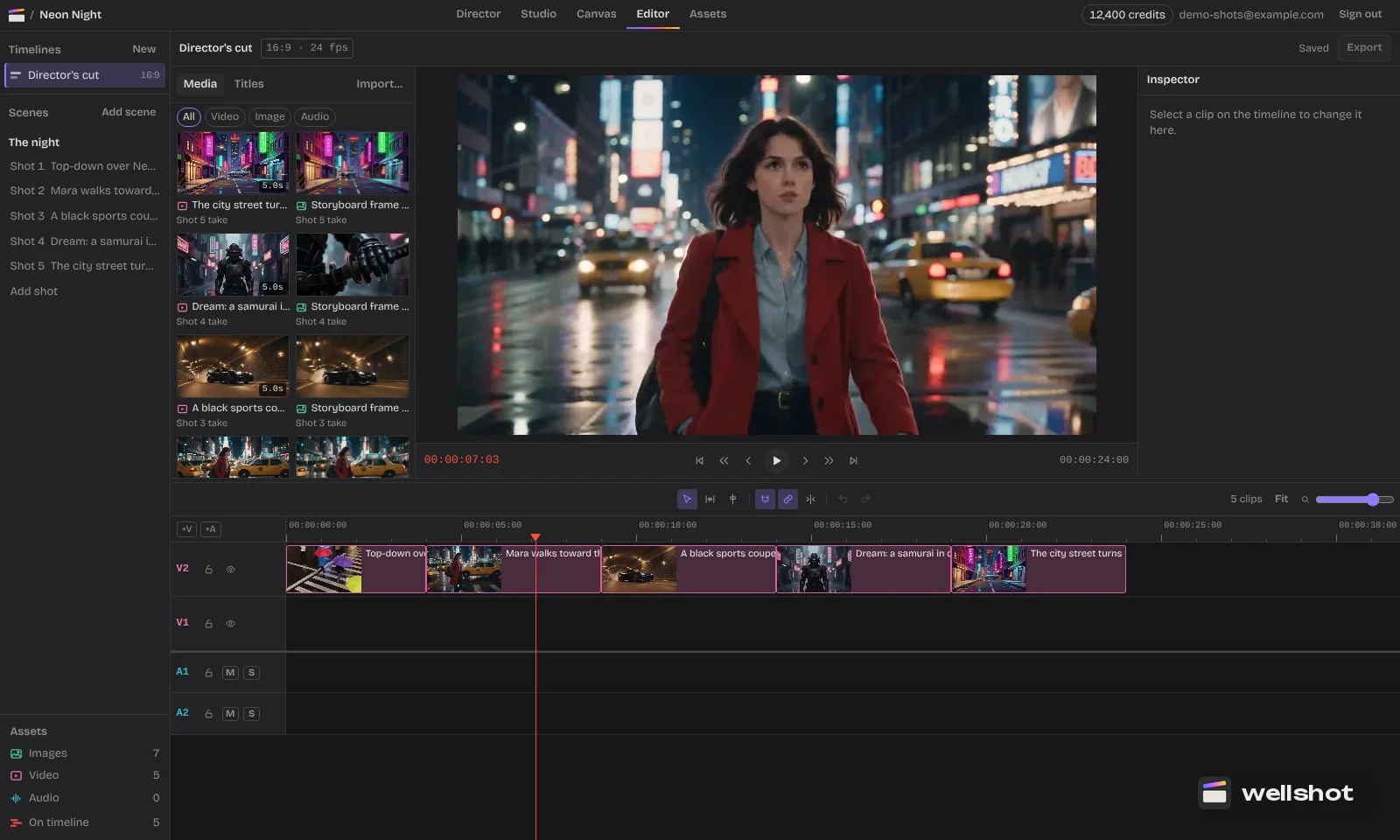
Joining clips in the Editor
Once you have the extension, put it on the timeline right after the original. In the online video editor you can:
- Use snapping to butt the clips together frame-accurately.
- Slip or trim either side to choose the cleanest join point.
- Ripple delete if you need to pull out a few frames.
- Lay your own music or voice on an audio track under both clips, so the sound carries across.
If the original clip came from an AI edit, such as a Recast or a restyle, the same approach works; see how to edit video with AI.
Planning for length from the start
The cheapest extension is the one you never need. When you plan a film with the AI director agent, it builds a storyboard with a planned length for each shot and trims each clip to that length on the timeline. If you know a shot will run long, ask for it to be made on Seedance 2.5, and use Seedance draft mode to preview the full length cheaply before rendering at 1080p.
Got a clip that ends too soon? Open Seedance 2.5 in Wellshot.
FAQ
Can you extend an AI generated video?
Yes. In Wellshot, Seedance 2.5 and the Seedance 2.0 family have an extend video task that continues a clip from where it ends.
How long can I extend a video?
Each extension is a new generation: up to 30 seconds with Seedance 2.5, or 4 to 15 seconds with the Seedance 2.0 models. You then join the original and the extension on the timeline.
Can I extend a video I did not make in Wellshot?
You can upload a clip to the project and use it as the input to an extend node. Only use footage you have the rights to use.
Will the extended part match the original?
It continues from your clip, and you can help it match by keeping the same resolution and aspect ratio and asking for the same lighting and color in the prompt.
Make it in Wellshot
Every model in one studio. Prompt it, wire it as nodes, or let the Director run it.