AI Video Templates: Recreate Any Wellshot Showcase Shot
Wellshot AI video templates are real showcase shots: Recreate opens the exact graph, seed and inputs that made a clip in a new project, ready to change.
By the Wellshot team · · 5 min read
Most AI video templates give you a prompt and a hope. In Wellshot, every showcase clip on the site works as a template: Recreate opens the exact graph, seed and inputs that made it, in a new project of your own. You start from something that already worked, then change the parts you need.
This post explains what you get when you recreate a shot, how to adapt it without breaking what made it good, and which showcase shots make the best starting points.
What Recreate actually opens
A showcase clip in Wellshot is not a screen recording or a sample file. It is the output of a shot, and every shot has a node graph, its takes and its assets. When you press Recreate on a clip, Wellshot copies that recipe into a new project:
- The graph: every node that made the clip, wired the same way, on the Canvas.
- The seed: the same randomness, so you can reproduce the result.
- The inputs: the prompt, any start frame or reference pictures, and the model settings.
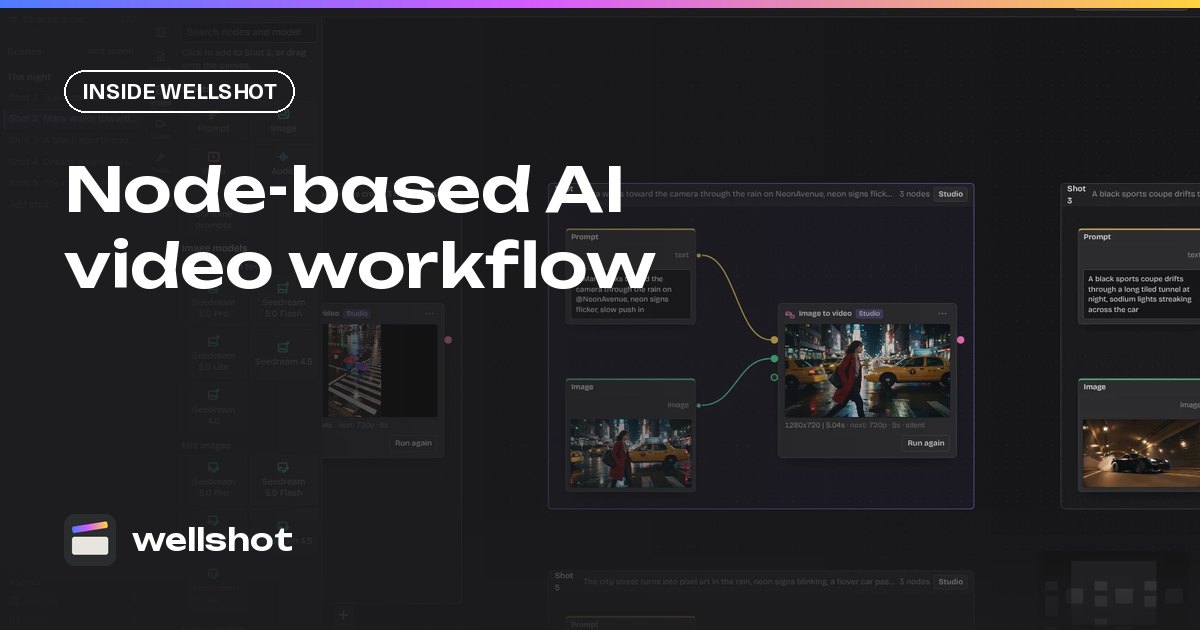
Because Wellshot's four views share the same data, the recreated shot is also open in Studio as a prompt panel. You can work in whichever view suits you. The node-based AI video workflow post covers the Canvas side in detail.
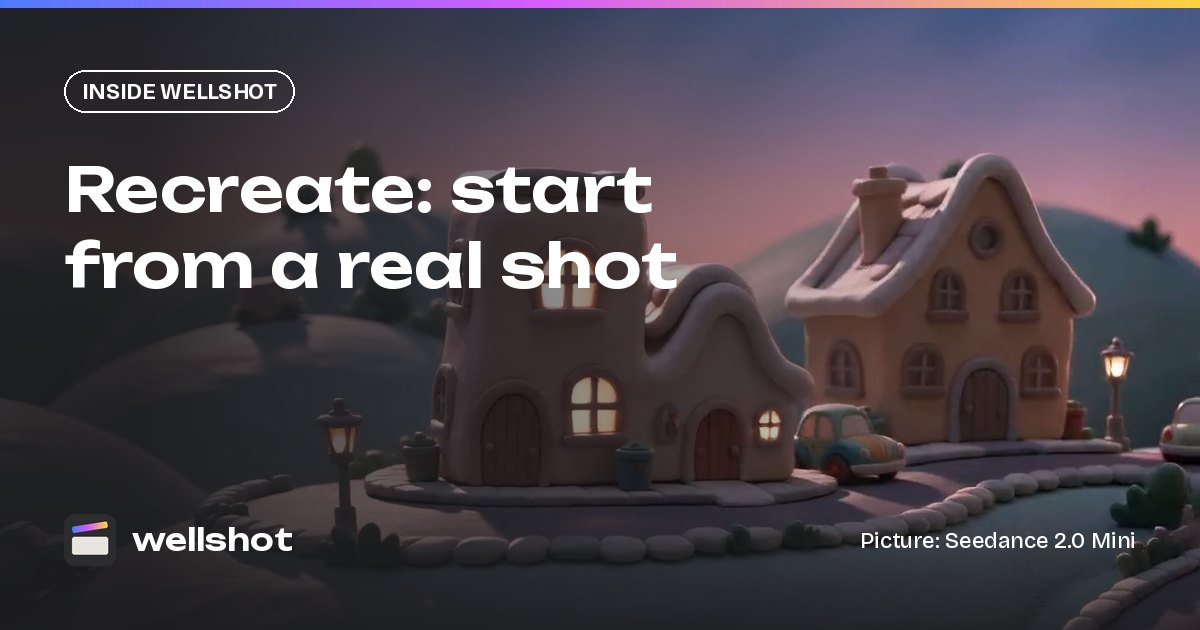
The cover of this post is a good example: a claymation city made with Seedance 2.0 Mini. Recreate it and you get that model, that prompt and that seed in your own project. You can recreate the claymation city shot to follow along.
Why a real recipe beats a prompt template
Prompt templates leave out most of what decides a result. The model, the length, the aspect ratio, the seed and any reference images all matter as much as the words. A recreated graph carries all of them, so:
- You can reproduce the result first. Run it unchanged and you should land on the same shot. Now you know your baseline.
- You can change one thing at a time. Keep the seed, change the subject, and see what that change did.
- You learn by reading. Open the nodes and you see exactly how a shot was built: which model, which task, which inputs.
How to adapt a template without breaking it
- Open the showcase clip and press Recreate. A new project opens with the shot.
- Run it once unchanged if you want a baseline take. The credit cost shows on the button first.
- Change the subject, keep the scaffold. Edit the prompt's subject and keep the camera, lighting and style words as they are.
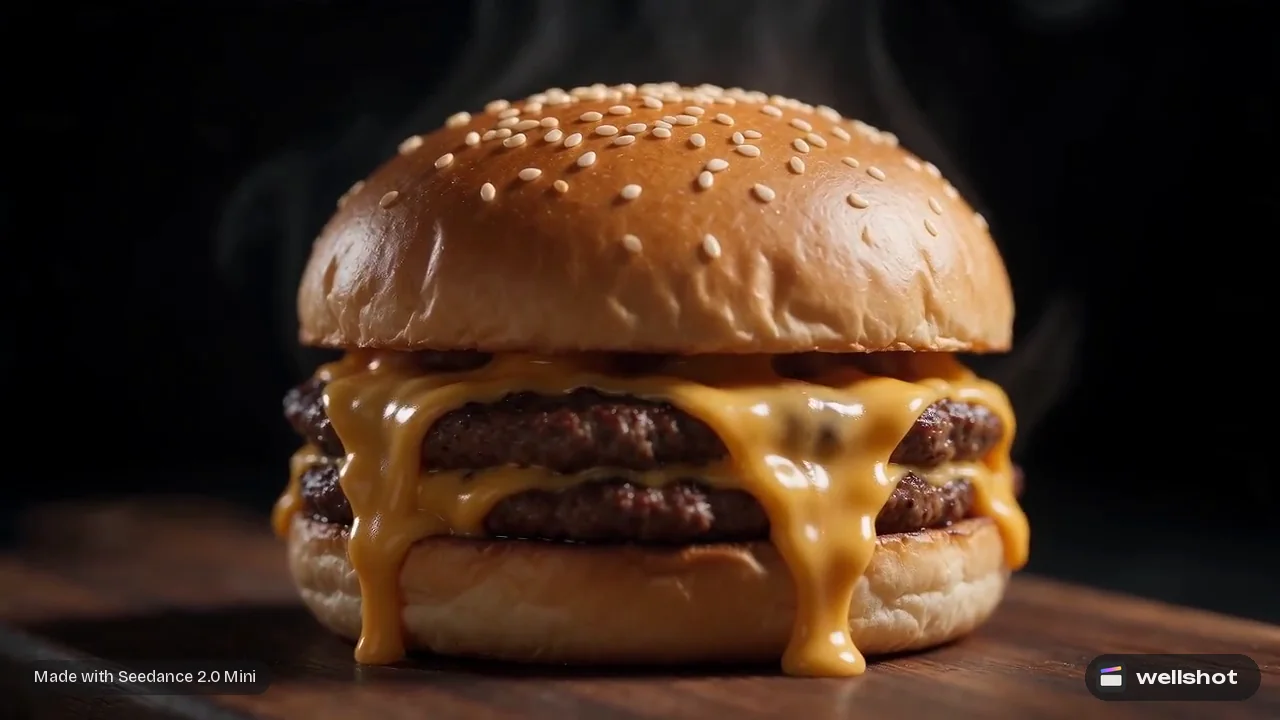
- Swap the start frame if the shot was animated from a picture. For example, the cheese-drip burger shot was animated from a menu photo; replace it with your own product photo.
- Branch variations side by side on the Canvas instead of overwriting. Each branch keeps its own takes.
- Re-run. Only the nodes you changed run again, because outputs are cached.
Here is how a prompt changes when you adapt one. The original idea is a claymation city; the adapted version keeps the style and camera and changes the subject:
Claymation harbor town at morning, hand-made clay boats bobbing on
sculpted water, tiny clay gulls circling. Visible fingerprints and
slightly uneven textures. Slow pan left across the harbor, soft warm
studio light, shallow depth of field like a miniature set.
Good starting points by job
| If you need | Recreate this showcase shot | Made with |
|---|---|---|
| Food or menu content | Burger cheese drip, animated from a menu photo | Seedance 2.0 Mini |
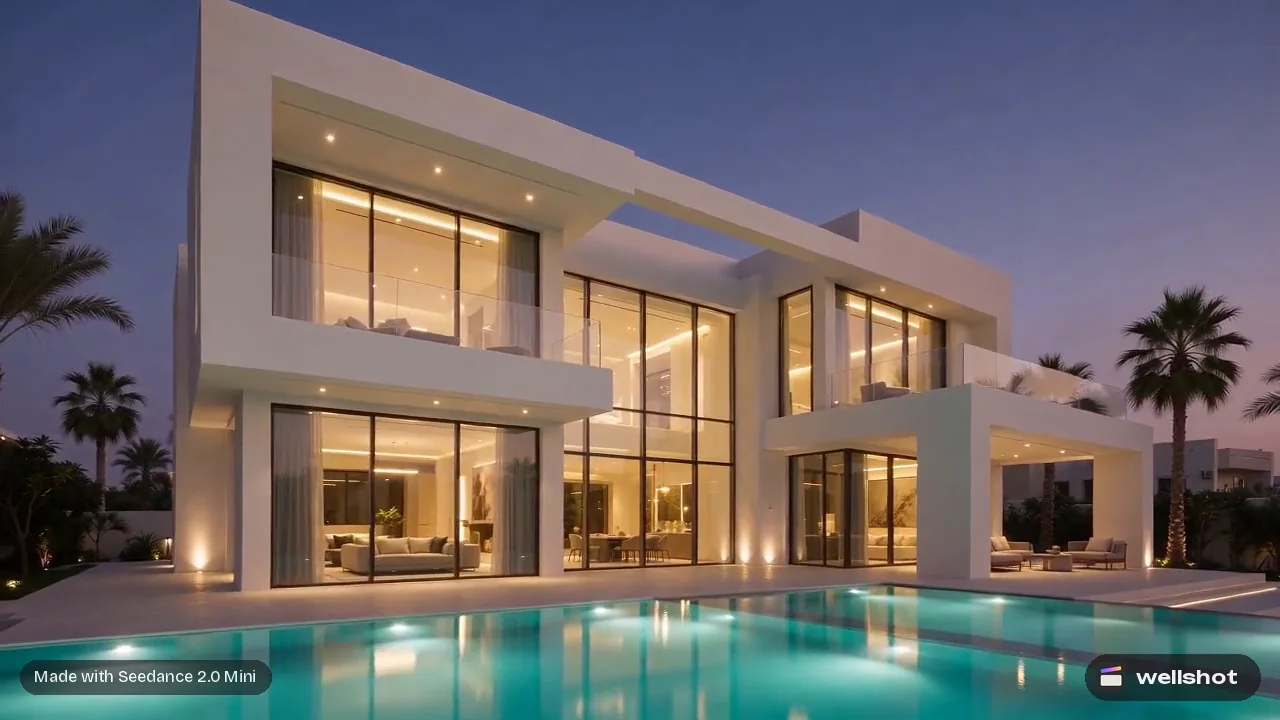
| Real estate | Drone push to a villa, from a property photo | Seedance 2.0 Mini |
| Product hero | Orbit around a perfume bottle, from a product picture | Seedance 2.5 |
| Vertical fashion | Catwalk in 9:16 | Seedance 2.0 Mini |
| Stylised animation | Claymation city or painted storybook forest | Seedance 2.0 Mini |
| Landscape b-roll | FPV drone down a fjord | Seedance 2.0 Mini |
| Underwater, with sound | Free diver | Veo 3.1 (recreates on Seedance 2.5) |
Many of these are animated from a still. The product and property stills were made with Seedream 5.0 Pro and used as start frames, so the recipe shows the whole path from picture to moving shot. The AI product video generator post covers that path for product work.
Changing the model on a recreated shot
A recipe is a starting point, not a lock. You can switch the model on the shot, for example to try the same idea on a model with longer takes or higher resolution. Be aware that a different model reads the same prompt and seed differently, so expect a new result rather than a sharper copy. If you want the same look at higher quality, stay on the original model and change resolution where it allows.
For help choosing, see the best AI video models you can run in Wellshot.
Turn a template into a sequence
A single recreated shot can grow into a scene. On the Canvas a whole scene sits on one board, with each shot as a group, so you can duplicate the recreated shot, change the camera move or angle in each copy, and build a short sequence that shares one look. Then cut it on the timeline. The how to write AI video prompts guide helps keep the language consistent across shots, and AI node editor tips speed up the wiring.
Pick a showcase clip you like and press Recreate to see how it was made.
FAQ
Are there free AI video templates in Wellshot?
Opening a showcase shot with Recreate gives you its graph, seed and inputs in a new project. Running generations costs credits, and the cost shows on the button before you run anything.
Will I get exactly the same video?
Recreate copies the exact graph, seed and inputs that made the clip, so running it unchanged is how you reproduce it. Once you change the prompt, inputs or model, the result changes too.
Can I use my own photo in a template?
Yes. If the shot was animated from a start frame, replace that picture with your own and re-run. Only the nodes that changed run again.
What is the difference between a template and a recipe?
In Wellshot they are the same thing: a recipe is the full set of nodes, settings, seed and inputs behind a showcase clip, and Recreate opens it in a new project for you to change.
Make it in Wellshot
Every model in one studio. Prompt it, wire it as nodes, or let the Director run it.